VirtualRemote: An Apple Remote for Your Mac, on Mac and iPhone
November 10, 2026
Picture a Mac mini under the TV, playing a show in Plex or a video on YouTube. Most of the time nobody is sitting in front of it. You are on the couch with a laptop, or across the room with a phone, and the thing playing on the TV needs a pause, a 20-second skip or a little less volume.
A Mac has no remote that does that well. VirtualRemote fills that gap.
VirtualRemote controls the media playing on another Mac on your network, like an Apple Remote for your Mac. It comes in two parts: a menu bar app for the Mac, and an iPhone app that does the same job from your pocket.
I built it for my own living room. Anyone can use it if it fits theirs, and I am not trying to make money from it. It is the kind of small, personal tool I wrote about in the homegrown software post.
The problem
macOS already knows what is playing. Every app that reports to "Now Playing" shows up in Control Center, and the media keys on a keyboard control it. The catch is that all of this is local. The keyboard has to be connected to the Mac that plays the media.
Screen Sharing can do it, but opening a remote desktop to press pause is a lot of ceremony. What I wanted was the media keys of the Mac under the TV, available on whatever device I was already holding.
How it works
One Mac plays the media (the receiver) and another controls it (the controller). A Mac can also be both.
The receiver announces itself on the local network with Bonjour, so the controller finds it without typing an address. The controller sends short commands, and the receiver turns them into Now Playing commands on its side. That is the whole idea: VirtualRemote does not talk to Plex or Spotify directly. It controls whatever macOS lists as Now Playing on the other Mac.
I have used it with Plex, YouTube in Arc, Spotify, Safari, Chrome, Firefox, VLC, Apple Music and Apple TV. Other players that report to Now Playing should work too, but I have not tried them.
The Mac app
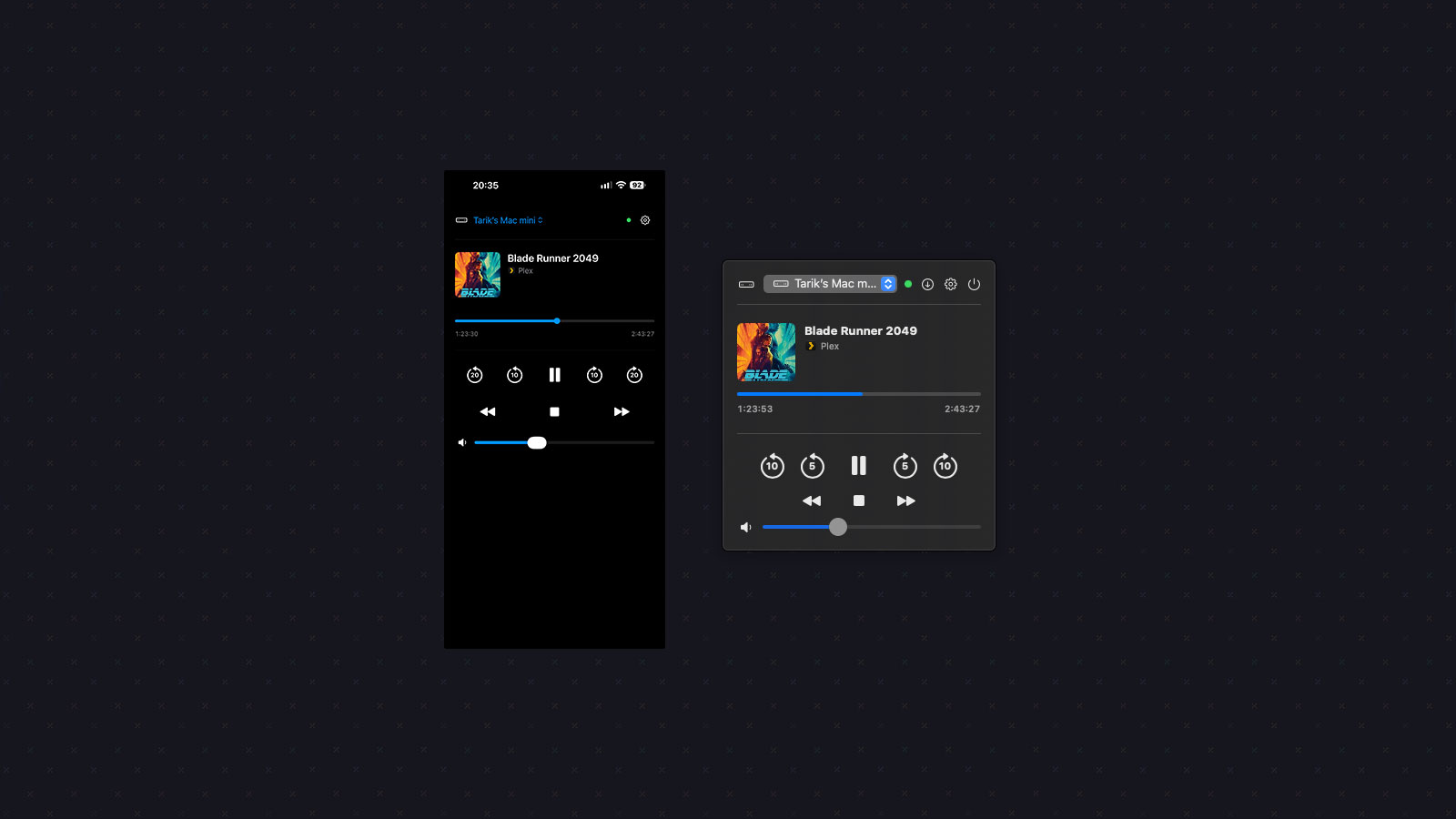
The Mac app lives in the menu bar. Click the remote icon and a popover shows what is playing on the other Mac: the title, the artist, the app with its icon, a progress bar and the cover art or thumbnail.
From there you can:
- Play, pause, go to the previous or next track, and stop. Stop only shows for players known to support it.
- Skip back and forward by two lengths. The defaults are 10 and 20 seconds, and you can change both.
- Change the volume or mute. This is the receiver's system volume, not the controller's.
- Seek. Click or drag the progress bar to jump anywhere. A small time bubble shows where you will land.
The part I use most is the global keyboard shortcuts. They work from any app, so I can pause the TV without leaving the document I am writing:
| Action | Default shortcut | | ----------------------- | -------------------------------------------------- | | Play or pause | Control + Option + Command + Space | | Back or forward (short) | Control + Option + Command + Left or Right | | Back or forward (long) | Shift + Control + Option + Command + Left or Right | | Volume up or down | Control + Option + Command + Up or Down |
You can record your own in Settings.
Each Mac in the list shows an icon for its kind (Mac mini, MacBook, iMac and so on), which helps more than you would think once there are two or three of them.
Small things that came from daily use
Most of the details in VirtualRemote exist because something annoyed me while I was using it:
- Nothing playing means nothing happens. Pressing play on a Mac with no media used to make macOS launch Apple Music. Now the receiver refuses and the controller says "Nothing is playing."
- No skipping on live streams. A YouTube live stream reports a position but no length, and skipping on it jumped far behind the live edge. Skip and seek are now greyed out for any player without a known length.
- Ignored apps. A Spotify that only remote-controls another device still grabs Now Playing on the Mac. A receiver can now ignore apps like that, and send play and pause to a fallback player (such as Plex) instead.
- Plex while ignored. With the local Plex Media Server's token pasted into Settings, the controller can still show what Plex is playing in that case.
- Fast disconnect detection. A receiver that goes to sleep or drops off Wi-Fi is noticed in about 15 seconds, and the controller reconnects when it comes back.
The iPhone app
The Mac app solved the laptop case. It did not solve the evening when the laptop is closed and the phone is the only thing within reach.
The iPhone app is a controller only. You pick a paired Mac and get the same popover as on the Mac: what is playing, the transport buttons, the two skip lengths, volume and seeking, with the same wording and icons. It shares the connection code with the Mac app, so both talk to the receiver the same way.
A few things are specific to the phone, and all of them are off by default:
- Lock Screen remote. It shows the receiver's player on the Lock Screen and in Control Center, with play, pause, next and previous. iOS only allows this while the app plays audio, so it plays silence in the background, which pauses any music playing on the iPhone itself. That is why it is a switch.
- Volume buttons. The iPhone's volume buttons can change the receiver's volume, and the phone's own volume follows the receiver's.
- A Control Center button that opens the app (iOS 18 and later).
On an iPad it uses a wider column and a larger cover.
Pairing and privacy
Pairing is done once. On the receiver, choose Receiver (or Both) in Settings and copy the pairing key it shows. On the controller, pick that Mac from the list and enter the key. After that the two reconnect by themselves.
The connection is encrypted (TLS with a pre-shared key, a random 120-bit value made on the receiver), and only controllers that know the key can connect. Keys live in the Keychain. Making a new key on the receiver unpairs every controller.
Everything stays on your local network. There is no account, no cloud service and no tracking. The only request that leaves the network is the Mac app's update check, and you can turn it off.
Getting it
The Mac app needs macOS 14 or newer, on both Macs, and both must be on the same local network and on the same version of VirtualRemote. It is a signed and notarized universal build, though I have only tested it on Apple Silicon. You can install it with Homebrew:
brew install --cask tarikkavaz/tap/virtualremoteDo this on both Macs. The app updates itself from inside the popover or Settings. If you installed an early version (0.3.5 or older), update it once by hand:
brew upgrade --cask virtualremoteThe first time it runs, macOS asks for Local Network access (allow it, or the Macs cannot find each other) and Keychain access (choose Always Allow).
The iPhone app needs iOS 17 or later. It is not on the App Store or TestFlight yet. For now it runs on my own phone, and I will write about it when that changes.
Why it is worth it
VirtualRemote does one thing. It will not manage a media library or stream anything. It turns the Mac under the TV into something I can control from wherever I am sitting, with the device I already have in my hand.
That is the whole appeal of building your own tools: the problem is small, very specific to my living room, and nobody else was going to solve it the way I wanted. Now the remote is wherever I am.