Stabilisator: Dialogue-Friendly Audio for the Whole Mac
October 26, 2026
You know the routine. The characters whisper, so you turn the volume up. Then something explodes, so you lunge for the volume key. Then they whisper again. Films and series are mixed for cinemas and big speaker setups, and on a desk, with a monitor or a pair of small speakers, that wide dynamic range mostly means riding the volume all evening.
TVs and soundbars often have a "night mode" or "dialogue boost" for exactly this. My Mac did not, and that gap became Stabilisator, a menu bar app that applies gentle dynamics processing to everything the Mac plays, whatever app it comes from.
Like most of what I build lately, I made it for myself. Anyone who finds it useful is welcome to use it, but I am not trying to turn it into a business. It is homegrown software: narrow, shaped by my own evenings in front of a screen, and done when it solves my problem.
What It Does
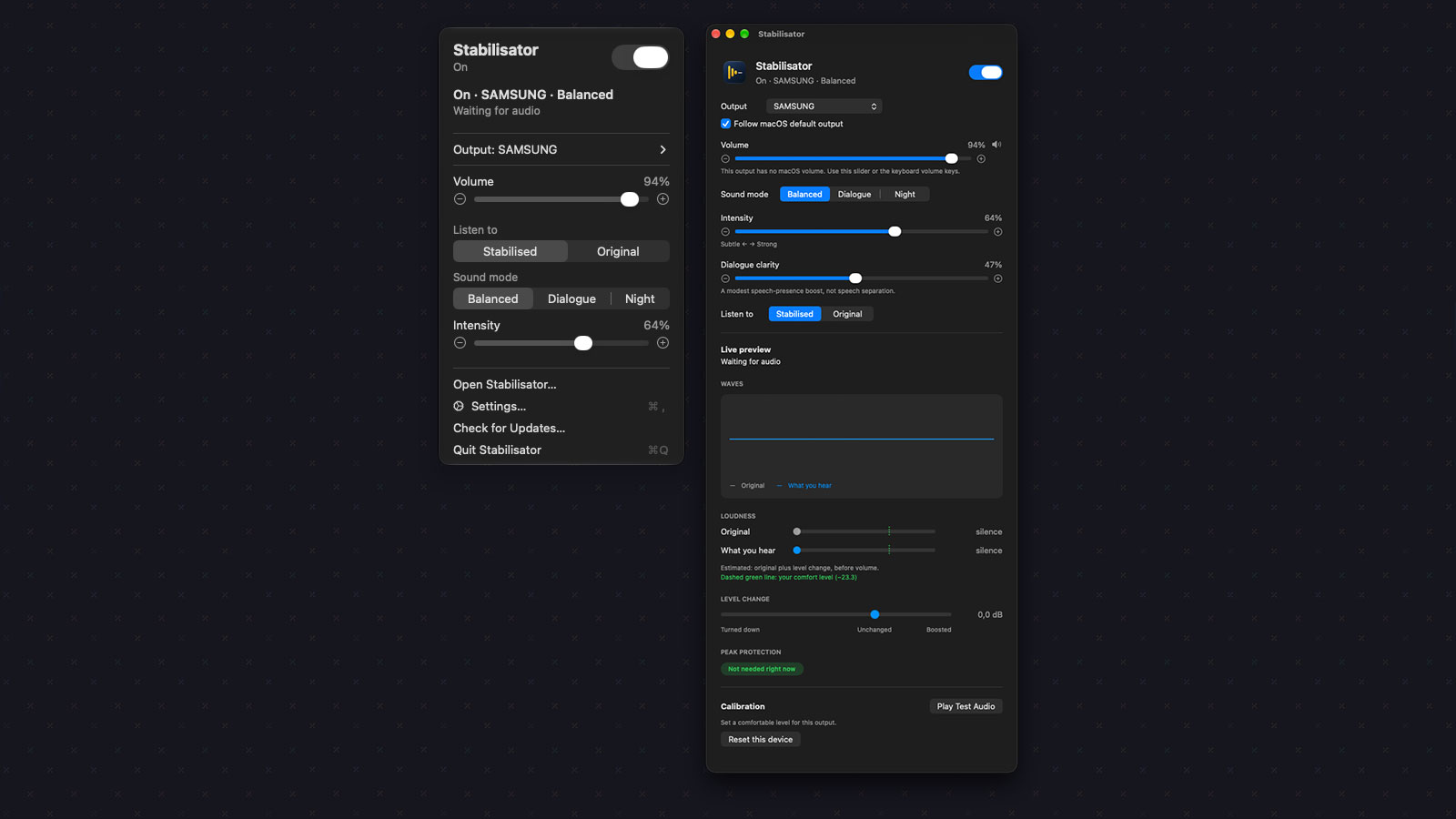
Stabilisator sits in the menu bar with no Dock icon. The menu has a large on/off switch at the top, then the controls that matter:
- Sound mode:
Balanced,DialogueorNight. - Intensity: one slider that scales how strongly the chosen mode works.
- Dialogue clarity: an optional lift in the range where voices live.
- Listen to: a switch between Stabilised and Original, so you can compare and decide whether it is actually helping.
- Output and volume: the output device and a Stabilisator volume for it.
Balanced is the everyday setting. Dialogue raises quiet passages a bit more
and adds some clarity by default. Night is the most aggressive about taming
loud moments, for when other people in the house are asleep.
The main window shows the same controls plus a plain sentence about what the app is doing right now. An optional Live preview shows the loudness of the original and processed audio, the net level change and when peak protection steps in. I added that mostly for myself, because "does it sound better?" is a surprisingly hard question to answer by ear alone.
No Virtual Audio Driver
Older system-wide audio tools on macOS usually worked by installing a virtual audio driver. You selected that fake device as your output, it received everything, and the tool forwarded the processed sound to your real speakers. It works, but it means installing a system audio plug-in, an extra device in your sound settings, and the occasional confused app.
macOS 14.2 added a better option: Core Audio process taps. An app can create a tap that receives the audio other processes are playing, and ask macOS to mute the original so it is not heard twice. Stabilisator uses that API and nothing else from outside Apple's own frameworks.
When you switch it on, the route looks like this:
- Create a private process tap on system audio, with the original output muted.
- Create a private aggregate device that combines the tap with the physical output you selected.
- Process the stereo signal in a realtime callback and write it to that output.
Both the tap and the aggregate device are private, so they do not show up as extra devices in System Settings. Switching off, quitting, a routing failure or a recovery all tear the route down, and macOS goes back to playing audio as usual. The app also takes care never to pick its own aggregate device as an output, which would be a fun loop to debug at full volume.
The output side had more edge cases than I expected. The tap always delivers stereo, but outputs do not always want stereo. Stabilisator sends the processed signal to the first two channels of the device, gives a mono output the average of both, and silences any other channel so nothing stale keeps playing there.
The Signal Chain
The processing itself is deliberately gentle. It is not trying to make everything the same loudness. It is trying to make the quiet parts audible and the loud parts less of a jump scare.
- Slow automatic gain. Loudness is measured with K-weighting (the filter curve from the ITU-R BS.1770 loudness standard), and a slow, bounded gain steers towards a reference level. It pulls loud passages down faster than it brings quiet ones up, and the mode and intensity set how far it can go in each direction.
- Compressor. Its threshold sits just below the peaks of normal dialogue at the reference level, so ordinary speech is left almost alone and only louder scenes get compressed.
- Dialogue clarity. An optional presence boost, smoothed so it can change while audio plays.
- Lookahead limiter. A short lookahead catches peaks before they clip.
Every parameter change is smoothed, and the tests check that changing parameters mid-playback, including the clarity boost, does not click. Parameters go from the UI to the audio thread through atomics, and all buffers are allocated up front, never on the audio thread.
Calibration and Volume
"Reference level" only means something if the app knows how loud your setup is. Calibration plays a short spoken clip directly to the selected output while you set the macOS volume to a comfortable level, and Stabilisator stores that per output device. The clip is excluded from the tap, so it is never processed. Stabilisator never changes the macOS volume itself.
Then there was an unexpected bonus feature. Some outputs, like a monitor connected over DisplayPort, have no macOS volume at all. The volume keys just show a disabled indicator. Since Stabilisator already sits in the audio path, it can provide its own volume for those outputs. The keyboard volume keys control it, and Stabilisator shows its own volume indicator. When processing is switched off, the route keeps running as pass-through on those outputs so the volume keys still work.
Settings are stored per output device, keyed by the device's Core Audio UID, so your headphones and your speakers can have different modes and levels. The output can follow the system default or be locked to one device.
Permissions and Privacy
Stabilisator asks for System Audio Recording permission the first time you switch processing on. The audio is processed locally in bounded memory. It is not recorded to disk and not sent anywhere.
The volume keys on outputs without a macOS volume need Input Monitoring. To show Stabilisator's own volume indicator instead of the disabled macOS one, it also needs Accessibility. The Settings window shows the status of each permission and explains what to do when one is listed but not working.
Installing It
Stabilisator needs macOS 14.2 or later and is installed with Homebrew:
brew install --cask tarikkavaz/tap/stabilisatorIt updates itself from the menu or from Settings. You can also update through Homebrew:
brew upgrade --cask stabilisatorIt is still a beta. The audio route, calibration, volume and keys have been checked on real hardware, and I use it every day, but things like sleep and wake and switching outputs deserve more real-world mileage. One practical note: quit other system-wide audio apps before switching it on, because they compete for the same audio route.
Why It Was Worth Building
The commercial answer to this problem is a soundbar with a night mode, or an audio utility with many more features than I need. What I wanted was one menu bar switch that makes an evening of watching something on my Mac less tiring, and that works the same in a browser, a streaming app or a video player.
That is a small target, which is exactly why it was worth building myself. I can tune it for my own speakers, my own room and my own tolerance for explosions, and leave everything else out.