Search Shortcuts - Quick Search with Keyboard Shortcuts
November 24, 2025
How many times have you selected text on a webpage and wanted to search it quickly, only to find yourself right-clicking, looking for "Search Google," opening a new tab, and pasting the text? If you're like me, this happens dozens of times a day, and those seconds add up.
That's why I built Search Shortcuts—a Chrome extension that transforms how you search the web. Select text, press a keyboard shortcut, and instantly search with your preferred engine. No more context menu navigation, no more manual copying and pasting.
The Problem with Default Search
Browsers come with basic search functionality, but it's often clunky. You select text, right-click, find the search option (if it exists), and wait for a new tab to open. If you want to search on a different engine—YouTube, Wikipedia, IMDb, or a custom search site—you're copying, pasting, and navigating manually.
This breaks your flow. When you're researching, reading documentation, or just browsing, the friction of traditional search adds up. Each interruption pulls you out of your focus zone.
Keyboard Shortcuts That Just Work
Search Shortcuts solves this with keyboard shortcuts that work exactly where you need them. Select any text on any webpage, press Alt+Shift+1 through Alt+Shift+4, and instantly search with your preferred engine. The shortcuts map to your first 4 search engines (excluding separators), so you can quickly access your most-used engines without thinking.
The beauty is in the simplicity: select, press, search. No context menus, no navigation, no interruption. Your search opens in a new tab, and you're back to what you were doing.
Customizable Search Engines
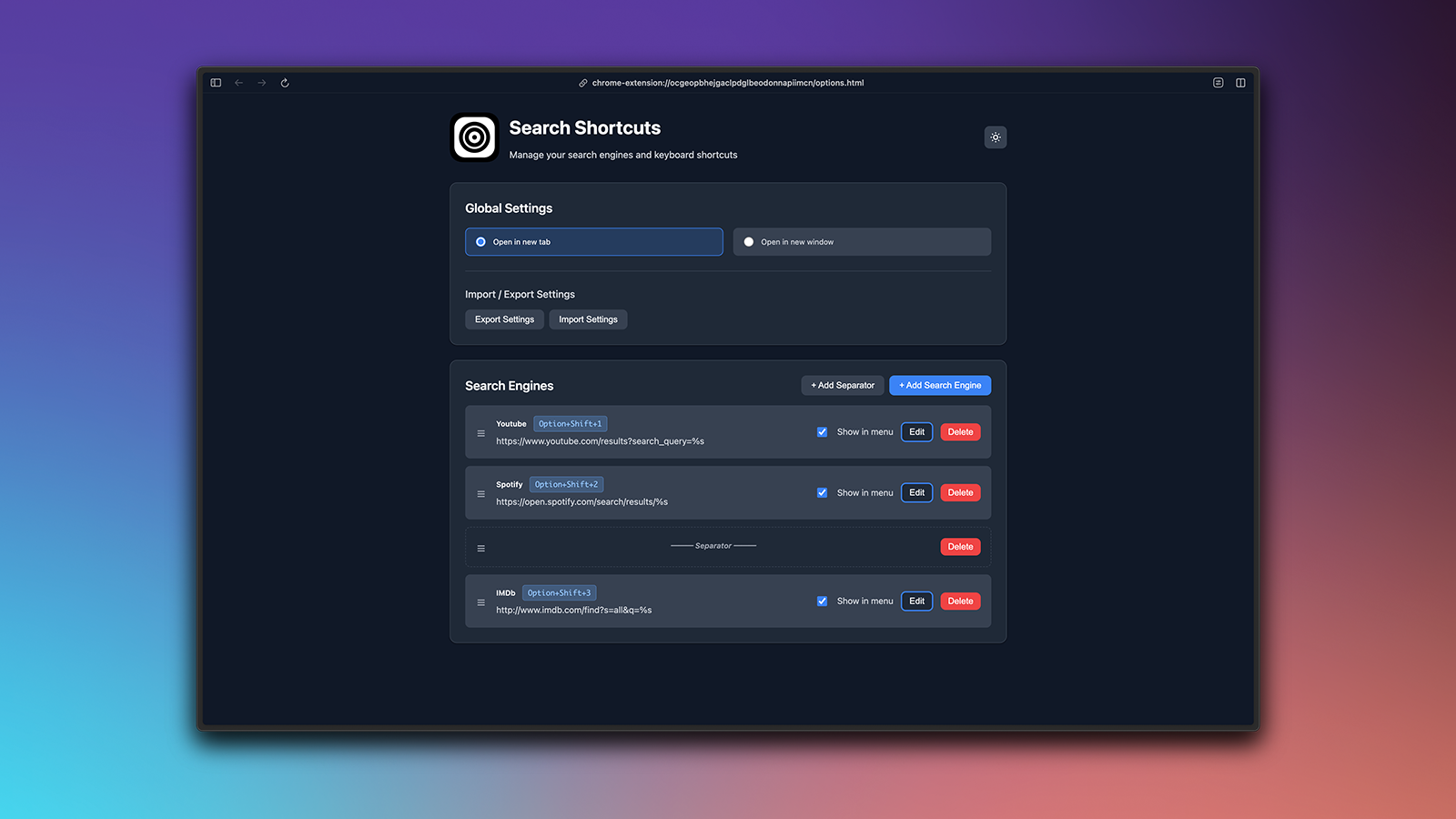
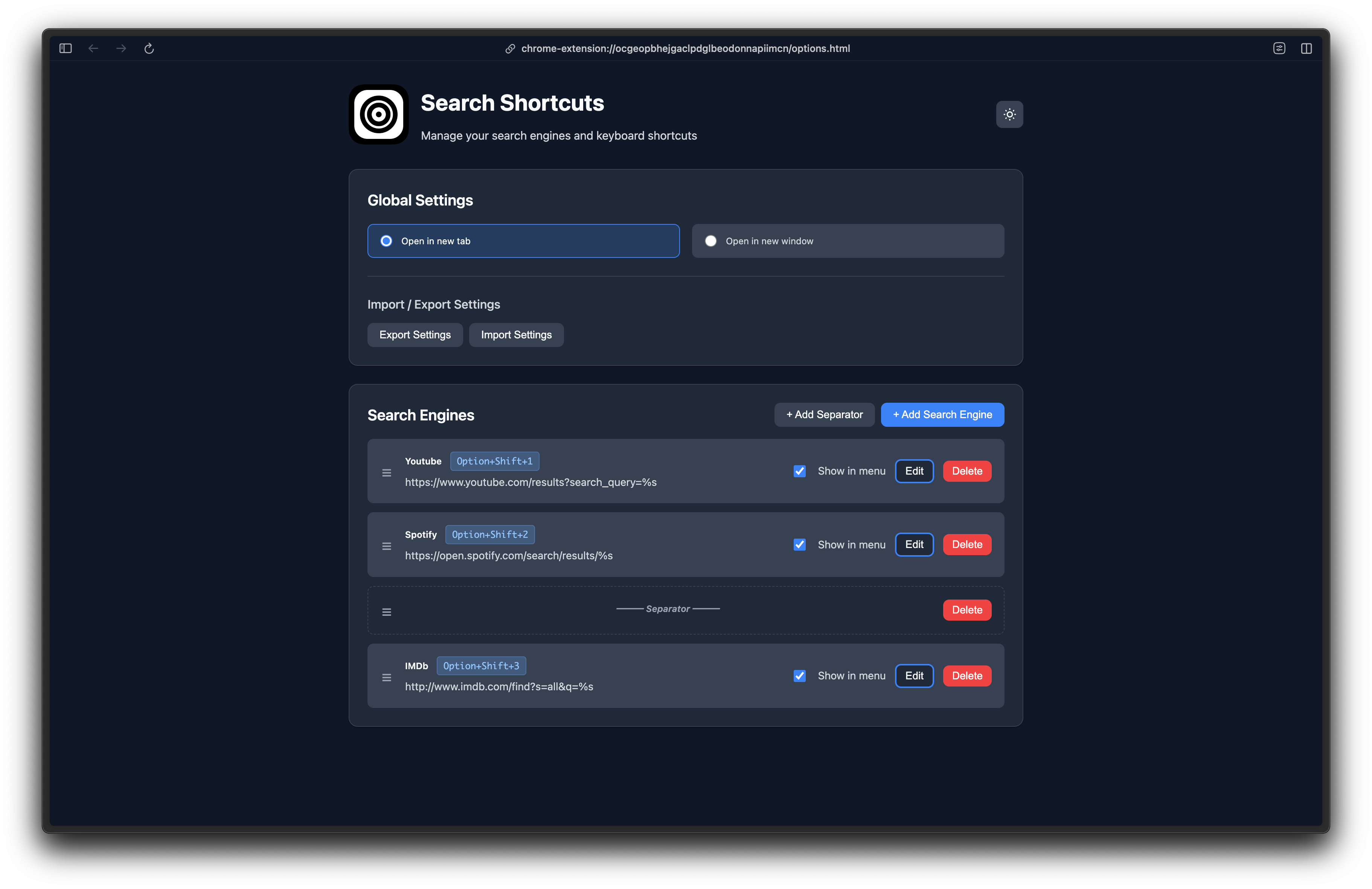
Everyone has different search needs. You might need YouTube for tutorials, IMDb for movies, Wikipedia for quick facts, and Google for everything else. Search Shortcuts lets you add, edit, and remove search engines with custom URLs using the %s placeholder for your selected text.
The extension comes with sensible defaults—YouTube, Google, IMDb, Wikipedia, and DuckDuckGo—but you can customize everything. Want to search GitHub, Stack Overflow, or a custom internal search tool? Just add it with the URL pattern, and it's instantly available.
Organizing with Separators
As your list of search engines grows, organization becomes important. That's where separators come in. Add visual separators in your context menu to group related engines. Maybe you have a "Social Media" section, a "Technical Resources" section, and a "General Search" section. Separators make your context menu clean and navigable.
You can drag and drop search engines to reorder them, with a visual blue line showing exactly where each item will land. Want your most-used engines at the top for quick keyboard shortcut access? Just drag them there. The interface makes it intuitive and immediate.
Context Menu Integration
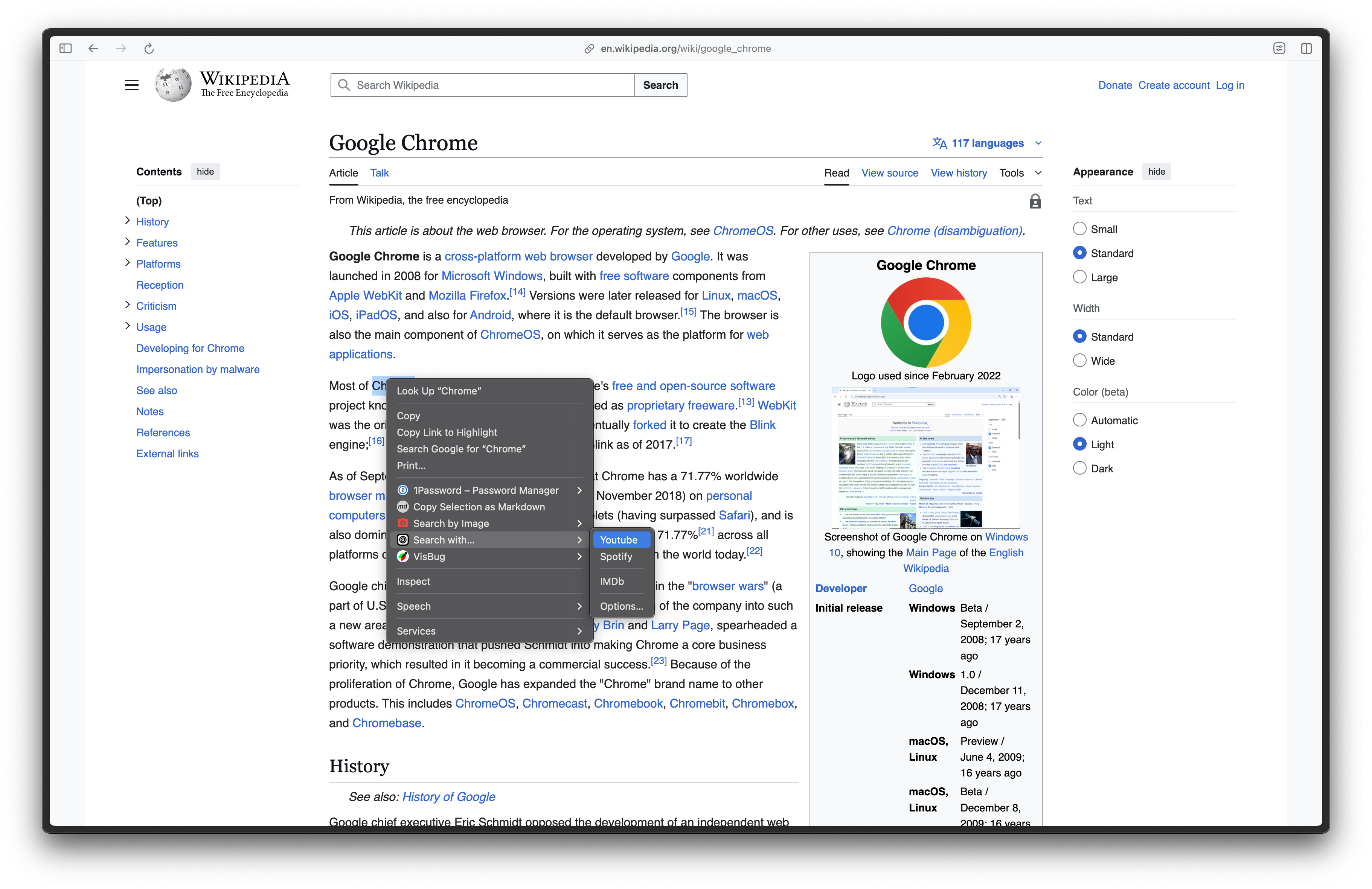
While keyboard shortcuts are fast, sometimes you need access to more than your top 4 engines. That's where the context menu integration shines. Right-click on selected text, and you'll see a "Search with..." menu item with all your configured engines (except those you've hidden).
Separators are always visible in the context menu to help organize your options, while individual engines can be toggled on or off. This gives you quick keyboard access to your most-used engines and easy context menu access to everything else.
Cross-Platform Support
The extension automatically adapts keyboard shortcuts for Mac and Windows/Linux. On Mac, it uses Alt+Shift, while on Windows/Linux, it uses the same combination. The extension detects your platform and adjusts accordingly, so the experience feels native on every system.
Dark Mode
Search Shortcuts respects your system preferences with automatic dark/light mode. The settings page adapts to your system theme, making it comfortable to use whether you're in a bright room or working late at night. A manual toggle lets you override the system preference if needed.
Import and Export
Your search engine configuration is yours. Export your settings to a JSON file for backup or to share with other devices. Import a configuration file to quickly set up the extension on a new machine or restore from a backup. This makes it easy to keep your setup consistent across devices.
Built for Power Users
Search Shortcuts is built with Chrome Extension Manifest V3, using the Chrome Storage API for persistence. While Chrome limits keyboard shortcuts to the first 4 engines (which is why only your top 4 non-separator engines get shortcuts), you can have unlimited engines via the context menu.
The extension is lightweight, fast, and doesn't track anything. All your settings are stored locally, and your searches go directly to the engines you choose—no intermediary servers, no data collection, just fast, private search.
Getting Started
Download from Chrome Web Store
After installation, right-click the extension icon and select "Options" to customize your search engines.
Start with the defaults, add your favorites, and organize them with separators. In minutes, you'll wonder how you ever searched the web without it.
Customization Tips
- Reorder for efficiency: Put your most-used engines at the top to assign them to keyboard shortcuts
- Use separators: Group related engines (social media, technical resources, etc.) for easier navigation
- Custom URLs: Add internal tools or specialized search engines by using the
%splaceholder pattern - Context menu control: Hide engines you rarely use from the context menu while keeping them available for editing
Search Shortcuts transforms web search from a multi-step process into a single keystroke. Once you get used to it, you'll never want to go back.