Regex Batch Renamer - A Powerful Raycast Extension for File Management
January 15, 2025
Have you ever found yourself staring at a folder full of files with inconsistent naming? Maybe you downloaded a bunch of photos with names like IMG_20240115_123456.jpg, photo (1).jpg, and vacation-pic-v2-final.jpg, and you want to organize them into something more readable. Or perhaps you're working with exported files that have version numbers, timestamps, or other metadata cluttering their names.
Renaming files one by one is tedious, and while macOS Finder has some basic renaming capabilities, it doesn't handle complex patterns or give you the power of regular expressions. That's where Regex Batch Renamer comes in.
Regex Batch Renamer is a Raycast extension that brings the full power of regular expressions to file and folder renaming. It lets you create reusable renaming jobs with multiple regex rules, preview changes before applying them, and process entire batches of files with a single command. Whether you're cleaning up downloaded files, organizing project assets, or standardizing naming conventions across hundreds of files, this extension makes it effortless.
Why I Built This Extension
I built this extension because I was constantly dealing with files that had inconsistent naming. Whether it was photos from different devices, exported assets with version numbers, or files downloaded from various sources, I found myself spending too much time manually renaming things. I wanted a tool that could handle complex renaming patterns, let me preview changes before applying them, and remember my common renaming tasks for reuse.
The extension solves this by giving you a job-based workflow. You create renaming jobs with one or more regex rules, save them for later use, and execute them whenever you need to clean up a batch of files. It integrates seamlessly with Finder, so you can select files and run a job with just a few keystrokes.
Key Features
Multiple Rename Jobs - Create, edit, and manage multiple regex-based renaming jobs. Each job can have multiple rules that execute in sequence, giving you the flexibility to handle complex renaming scenarios.
Batch Processing - Rename multiple files and folders at once. Select as many files as you need in Finder, and the extension processes them all in a single operation.
Regex Rules - Use powerful regular expressions with capture groups and flags. The extension supports all standard regex features, so you can match and transform filenames in virtually any way you need.
Preview Changes - See exactly what changes will be made before applying them. This preview shows you the original name and the new name side by side, so you can verify your regex patterns are working correctly.
Execution History - Track and review past rename operations. Every time you run a job, the extension logs what was changed, making it easy to see what happened and when.
Predefined Jobs - Includes useful presets like Slugify and file cleanup templates. These give you a head start on common renaming tasks, and you can customize them to match your needs.
Finder Integration - Works seamlessly with selected files in Finder. Select your files, open Raycast, run the job, and you're done.
Conflict Resolution - Automatically handles filename conflicts by appending numbers when needed. If renaming would create duplicate names, the extension intelligently resolves the conflict.
Getting Started
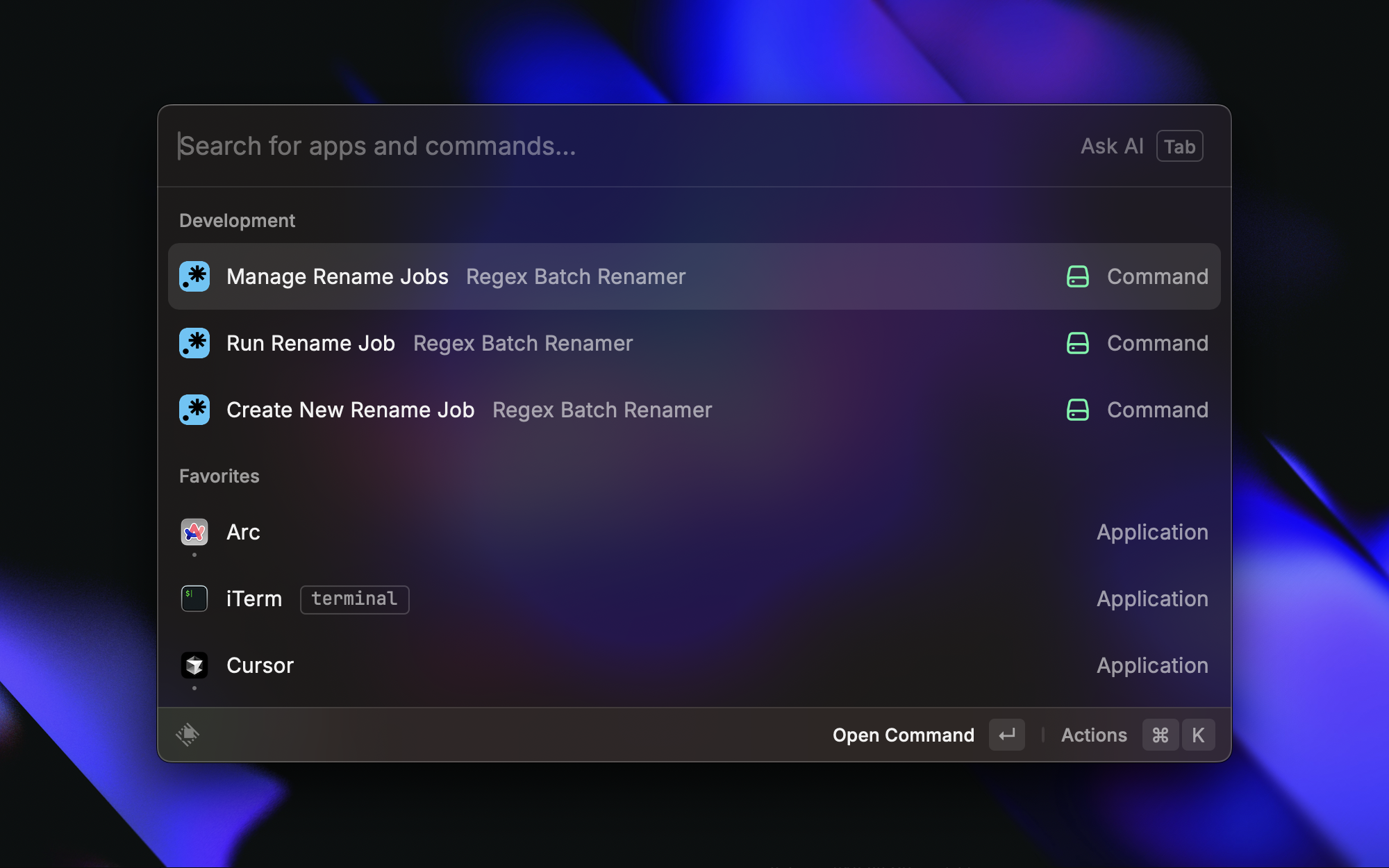
Using Regex Batch Renamer is straightforward. The extension provides three main commands:
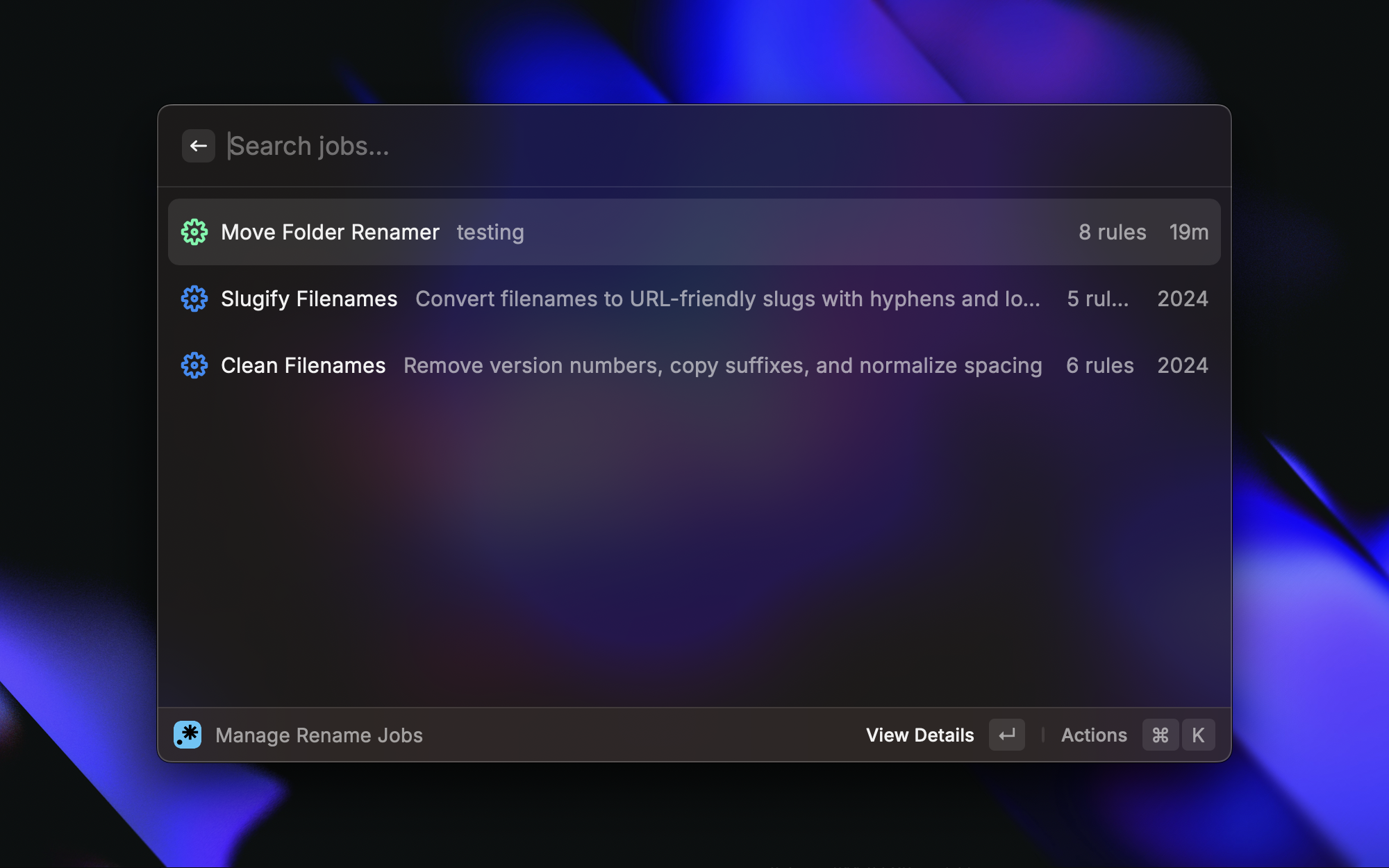
1. Manage Rename Jobs
This is where you create, edit, and organize your renaming jobs. You can:
- Create new regex-based renaming jobs
- Edit existing jobs with multiple rules
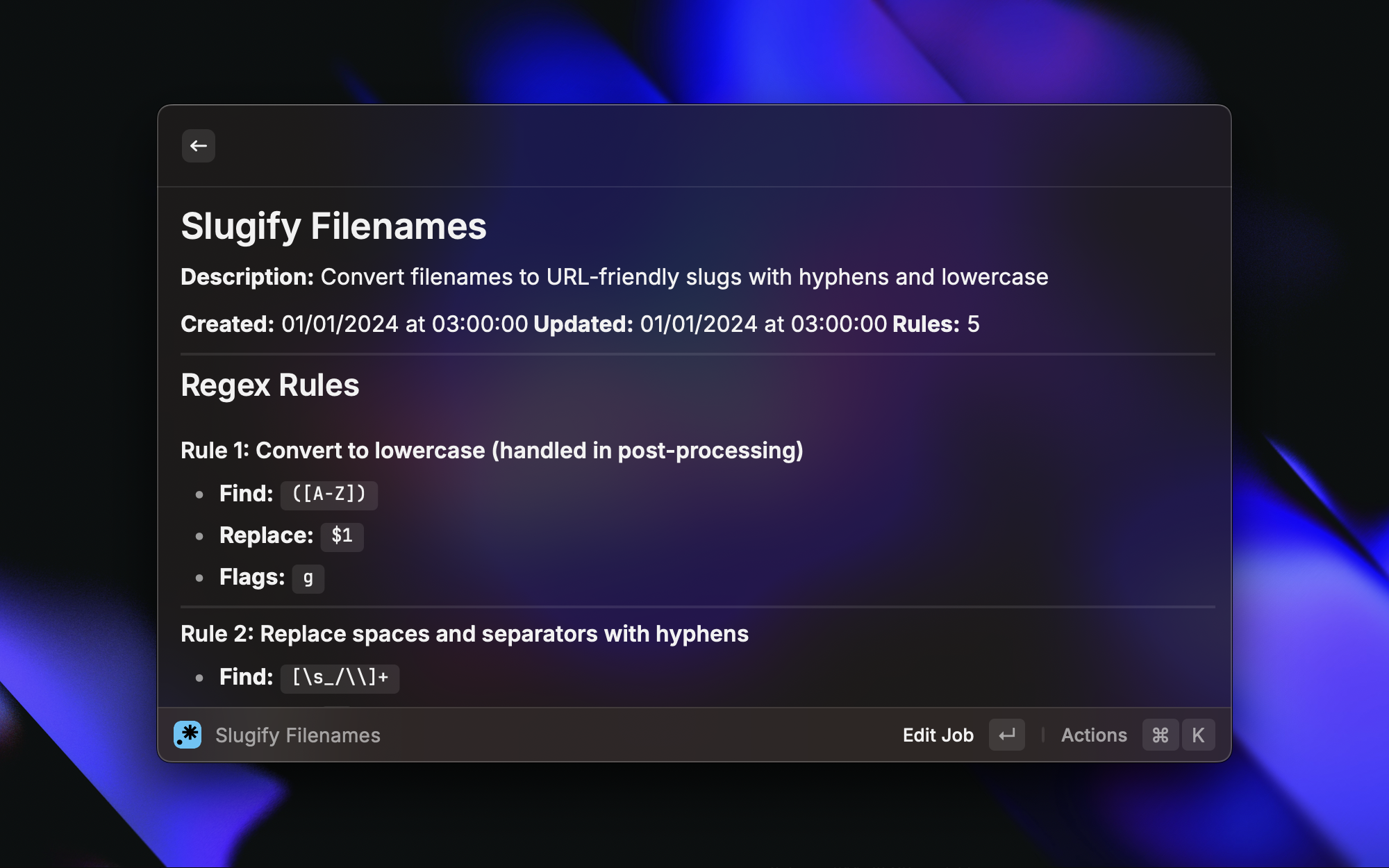
- View detailed job information
- Duplicate and delete jobs
- Browse predefined job templates
2. Run Rename Job
This is the command you'll use most often:
- Select files/folders in Finder
- Open Raycast and choose "Run Rename Job"
- Select the job you want to execute
- Preview changes (Cmd+P) to see what will happen
- Run the job to apply changes
- View results and copy the change log to clipboard
3. Create New Rename Job
Quick access to create a new renaming job. This command takes you directly to the job creation interface where you can:
- Add multiple regex rules with find/replace patterns
- Set regex flags (g for global, i for case-insensitive, m for multiline)
- Add descriptions for each rule to document what it does
Creating a Custom Job
Let's walk through creating a custom renaming job:
- Open "Manage Rename Jobs" from Raycast
- Press Cmd+N or select "Create New Job"
- Enter job details:
- Name: Give your job a descriptive name like "Remove Version Numbers"
- Description: Optional description of what the job does
- Add regex rules:
- Find Pattern: Enter a regular expression like
\s*v?\d+\.\d+(\.\d+)?\s* - Replace With: Enter replacement text (use
$1,$2for capture groups) - Flags: Set regex flags (g=global, i=case-insensitive, m=multiline)
- Description: Describe what this rule does
- Find Pattern: Enter a regular expression like
- Add multiple rules using Cmd+Plus if you need to chain transformations
- Save the job
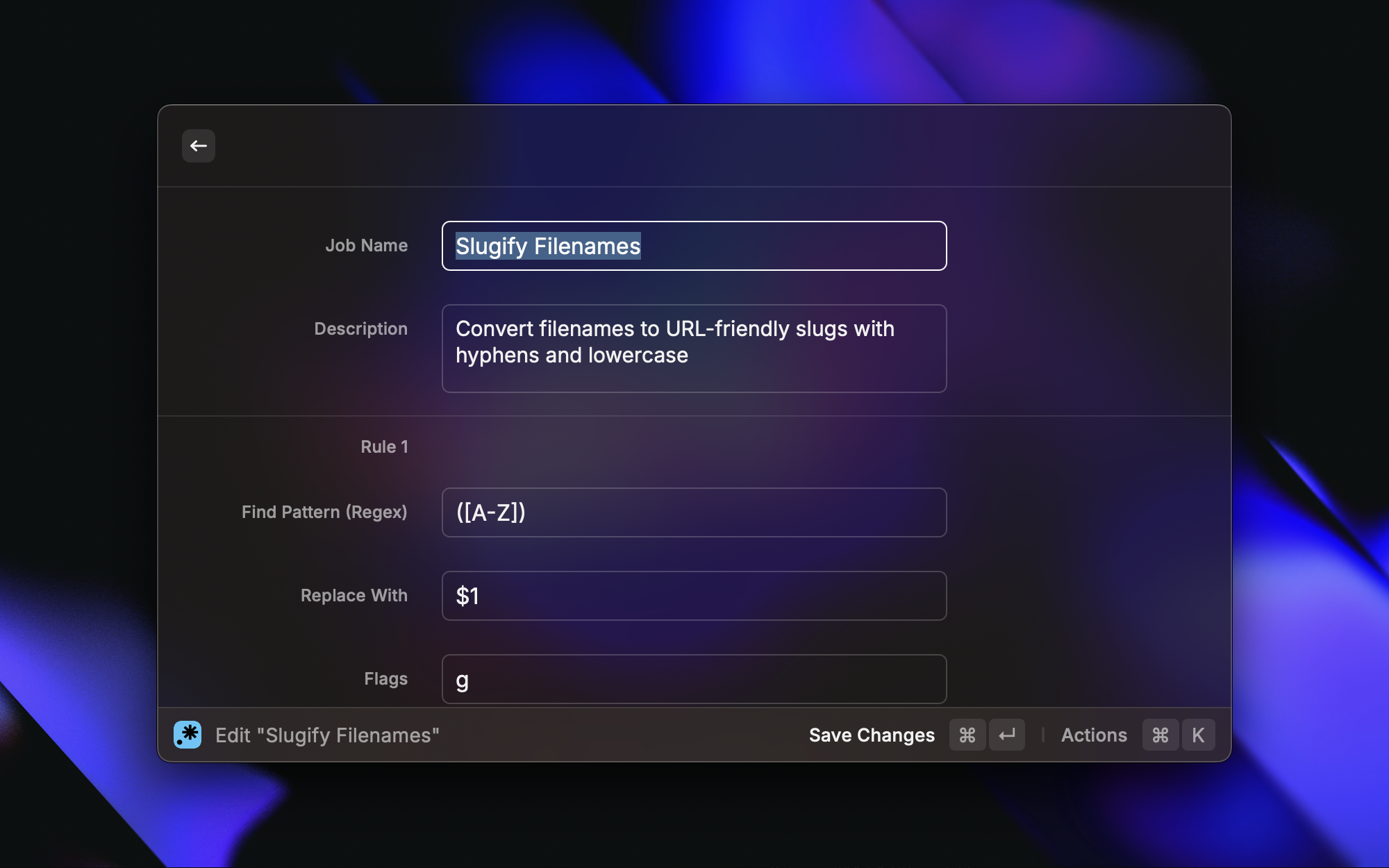
Once saved, your job appears in the list and can be used anytime you need to rename files.
Predefined Jobs
The extension comes with several predefined jobs to get you started:
Slugify Filenames
Converts filenames to URL-friendly slugs:
- Converts to lowercase
- Replaces spaces with hyphens
- Removes special characters
- Normalizes multiple hyphens
Example:My Important Document!.pdf → my-important-document.pdf
Clean Filenames
Removes common unwanted elements:
- Version numbers (v1.0, 2.1.3)
- Copy suffixes ((copy), (copy 1))
- Download numbers ((1), (2))
- Normalizes underscores and spaces
Example:document_v2.1 (copy 3).pdf → document.pdf
These predefined jobs are great starting points, and you can customize them or use them as inspiration for your own jobs.
Regex Examples
Here are some practical regex patterns you might use:
Basic Patterns
\.- Matches literal dot\s+- Matches one or more whitespace characters[0-9]{4}- Matches exactly 4 digits(.+)- Captures one or more characters^The (.+)$- Matches lines starting with "The "
Replacement Patterns
$1- First capture group$2- Second capture group- Empty field - Removes the matched text
Common Flags
g- Global (replace all occurrences)i- Case-insensitivem- Multiline mode
Real-World Examples
Remove Version Numbers
- Find:
\s*v?\d+\.\d+(\.\d+)?\s* - Replace:
- Description: Remove version numbers like v1.0, 2.1.3
Extract Year from Filename
- Find:
.*([0-9]{4}).* - Replace:
($1) - Description: Keep only the 4-digit year
Convert Camel Case to Kebab Case
- Find:
([a-z])([A-Z]) - Replace:
$1-$2 - Flags:
g - Description: Convert camelCase to kebab-case
Safety Features
The extension includes several safety features to prevent mistakes:
Conflict Resolution - Automatically adds suffixes for duplicate names. If renaming would create two files with the same name, the extension appends -1, -2, etc. to avoid overwriting.
Validation - Validates regex patterns before saving. If your regex is invalid, you'll know immediately rather than discovering it when you try to run the job.
Preview Mode - See changes before applying them. This is crucial when working with regex—you can verify your patterns are matching correctly before committing to the changes.
Execution History - Track what was changed and when. Every rename operation is logged, so you can review what happened and even copy the change log to your clipboard.
Error Handling - Graceful handling of permission issues and invalid patterns. If something goes wrong, you get clear error messages rather than silent failures.
Tips for Success
- Test regex patterns on smaller batches first. Start with a few files to verify your pattern works as expected before processing hundreds of files.
- Use preview to verify changes before applying. The preview shows you exactly what will happen, so you can catch mistakes before they happen.
- Backup important files before bulk operations. While the extension is safe, it's always good practice to have backups when doing bulk renames.
- Start simple and add complexity gradually. Begin with basic patterns and add more rules as needed.
- Use capture groups (
$1,$2) to preserve parts of filenames. This lets you rearrange or transform filenames while keeping important parts.
Get It Now
Ready to streamline your file management workflow? Download Regex Batch Renamer from:
Once installed, take a few minutes to explore the predefined jobs and create a custom job for your most common renaming tasks. You'll find that having the power of regex at your fingertips makes file organization much more efficient, and the ability to save and reuse jobs means you'll set things up once and benefit from them repeatedly.
Whether you're cleaning up downloaded files, organizing project assets, or standardizing naming conventions, Regex Batch Renamer gives you the tools to handle it all with confidence.