Open With Context Menu - VSCode Extension
December 16, 2025
Have you ever wanted to open a markdown file in Typora directly from VS Code? Or maybe you need to edit an image in Photoshop, or view a PDF in your preferred reader? VS Code's built-in "Open With" functionality is limited, but there's a better way.
Open With Context Menu is a VS Code extension that adds context menu items to open files with external applications. You can configure multiple apps and associate them with specific file types, making it easy to use the right tool for each file without leaving your editor.
Why This Extension Exists
I built this extension because I found myself constantly switching between VS Code and other applications. Whether I was writing markdown that needed to be previewed in Typora, or working with images that needed editing in external tools, the workflow was clunky. I wanted a seamless way to open files in the right application without leaving VS Code.
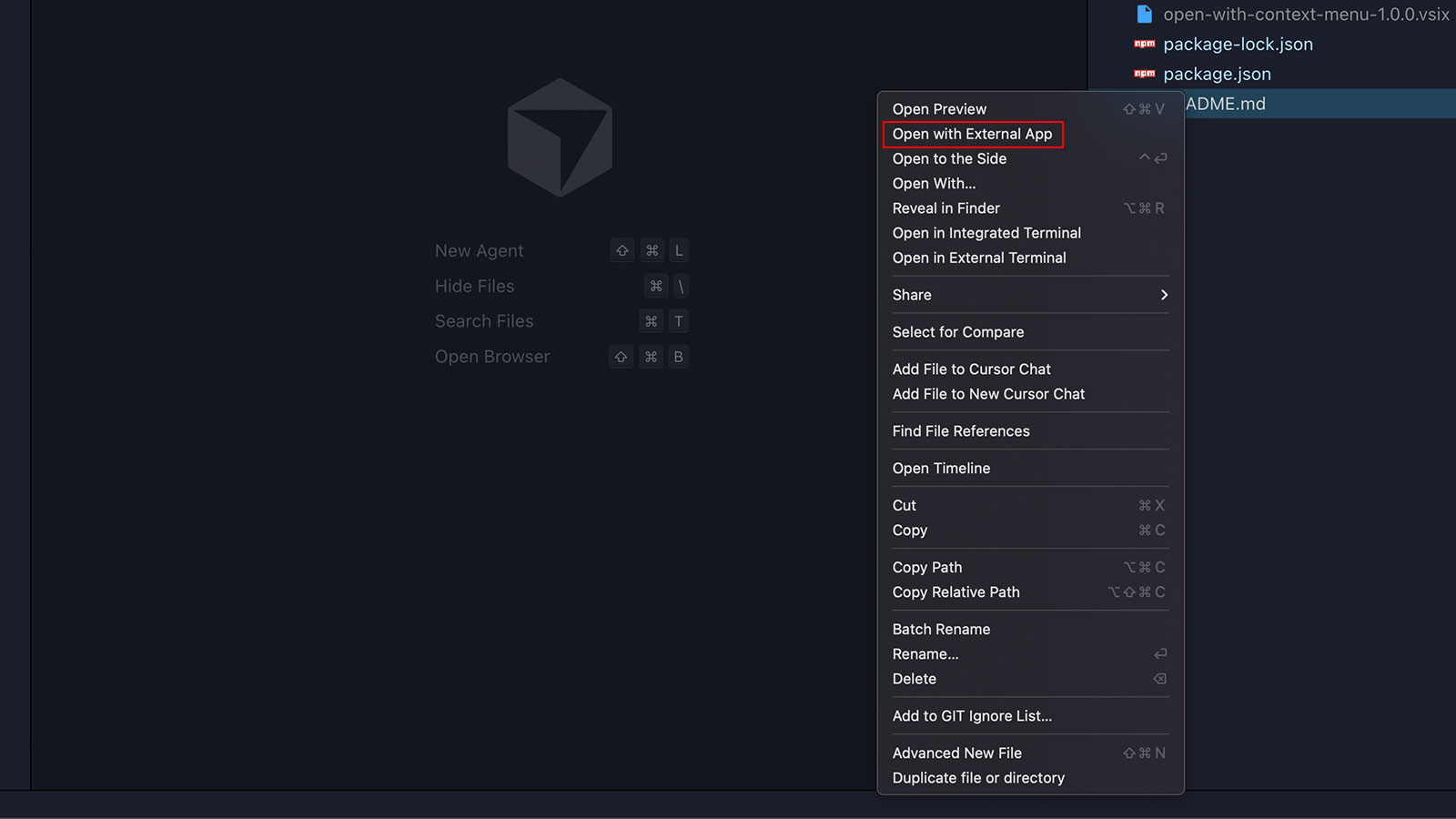
The extension solves this by adding a context menu item that appears when you right-click on files. It's smart enough to show only the relevant applications for each file type, and if you have multiple apps configured for the same file type, it presents a quick pick menu so you can choose.
Key Features
Multiple App Support - Configure as many external applications as you need. Each app can be associated with specific file types, so you'll only see relevant options when right-clicking.
Cross-Platform - Works seamlessly on Windows, macOS, and Linux. The extension handles platform-specific differences automatically, so your configuration works regardless of your operating system.
Flexible Configuration - Use either app names (for common applications) or full executable paths (for more control). This flexibility means you can configure everything from system apps to custom scripts.
Smart Selection - When only one app matches a file type, it opens directly. When multiple apps are available, you get a quick pick menu to choose. No unnecessary clicks, no confusion.
Easy Setup - Configure everything through VS Code's settings UI or directly in your settings.json file. The configuration is straightforward and well-documented.
Getting Started
Installation is simple. You can install it through VS Code's extension marketplace:
- Open VS Code
- Go to Extensions view (Ctrl+Shift+X / Cmd+Shift+X)
- Search for "Open With Context Menu"
- Click Install
Once installed, you'll need to configure which applications you want to use. The extension doesn't make assumptions about your setup—you tell it exactly which apps to use for which file types.
Configuration Made Simple
Configuring the extension is straightforward. You can do it through VS Code's settings UI or by editing your settings.json directly:
- Open Settings (Ctrl+, / Cmd+,)
- Search for "Open With Context Menu"
- Click "Edit in settings.json" to configure apps
The configuration uses a simple JSON structure that's easy to understand and modify. Here's the basic format:
{
  "openWithContextMenu.apps": [
    {
      "name": "Typora",
      "appName": "Typora",
      "appPath": "",
      "fileTypes": [".md", ".markdown", ".cursorrules"]
    },
    {
      "name": "Sublime Text",
      "appName": "",
      "appPath": "/Applications/Sublime Text.app/Contents/SharedSupport/bin/subl",
      "fileTypes": [".js", ".ts", ".json"]
    }
  ]
}Understanding the Configuration
Each app configuration has three main properties:
-
name (required): This is what you'll see in the context menu. Make it descriptive so you know which app you're opening.
-
appName (optional): The application name as your operating system knows it. On macOS, this is usually the app bundle name (like "Typora" or "Sublime Text"). On Windows, it's the executable name without the extension (like "notepad" or "code"). On Linux, it's the executable name (like "gedit" or "code").
-
appPath (optional): The full path to the application executable. This takes precedence over
appNameif provided, which is useful for applications installed in non-standard locations or when you need more control. On macOS, you can point to the.appbundle or the executable inside it. On Windows, use the full path to the.exefile. On Linux, use the full path to the executable. -
fileTypes (required): An array of file extensions (with the dot) or filenames that this app should handle. You can use extensions like
[".md", ".txt"]or specific filenames like[".cursorrules"]. The extension also supports language IDs for editor context.
Platform-Specific Tips
macOS: The easiest approach is to use appName with the app bundle name. For example, "Typora" or "Sublime Text" will work for most applications. If you need more control or the app is in a non-standard location, use appPath pointing to the .app bundle or the executable inside it.
Windows: Common applications like "notepad" or "code" work well with appName. For applications in Program Files or custom locations, use appPath with the full path to the .exe file. Remember to escape backslashes in JSON (use \\).
Linux: While appName may work for some apps via xdg-open, appPath is generally more reliable. Use the full path to the executable, which you can find using which or whereis commands.
Using the Extension
Once configured, using the extension is intuitive:
- Right-click on any file in the Explorer or Editor
- Select "Open with External App" from the context menu
- If multiple apps are configured for that file type, a quick pick menu will appear
- If only one app matches, it opens directly—no extra clicks needed
The extension is smart about when to show the menu. If you've configured multiple apps for markdown files, you'll see a menu to choose. But if you only have one app configured, it opens immediately, keeping your workflow smooth.
Real-World Examples
Let's look at some practical examples that show how you might configure the extension in your daily workflow.
Example 1: Opening Markdown Files with Typora
{
  "openWithContextMenu.apps": [
    {
      "name": "Typora",
      "appName": "Typora",
      "appPath": "",
      "fileTypes": [".md", ".markdown"]
    }
  ]
}Example 2: Using Sublime Text for Code Files (macOS)
{
  "openWithContextMenu.apps": [
    {
      "name": "Sublime Text",
      "appName": "",
      "appPath": "/Applications/Sublime Text.app/Contents/SharedSupport/bin/subl",
      "fileTypes": [".js", ".ts", ".jsx", ".tsx", ".json", ".py"]
    }
  ]
}Example 3: Multiple Apps for Same File Type
{
  "openWithContextMenu.apps": [
    {
      "name": "Typora",
      "appName": "Typora",
      "fileTypes": [".md"]
    },
    {
      "name": "VS Code",
      "appName": "code",
      "fileTypes": [".md"]
    }
  ]
}When you right-click a .md file with this configuration, you'll see a quick pick menu letting you choose between Typora and VS Code. This is perfect when you want to preview markdown in Typora but still have the option to edit in VS Code.
Making It Work for You
The beauty of this extension is its flexibility. You can configure it to match your exact workflow. Whether you're a designer who needs to open images in Photoshop, a writer who prefers Typora for markdown, or a developer who uses multiple editors, the extension adapts to your needs.
The configuration examples above are just starting points. You can add as many apps as you need, configure them for any file type, and even use full executable paths for maximum control. The extension handles the complexity so you can focus on your work.
Get It Now
Ready to streamline your workflow? Download the extension from:
Once installed, take a few minutes to configure it for your most common file types. You'll find that having the right tool just a right-click away makes a bigger difference than you might expect.