NativeKeys: Correct Turkish Characters While You Type on a Mac
November 13, 2026
Turkish uses the Latin alphabet plus six letters with marks: ç, ğ, ı,
ö, ş and ü (and their capitals, including the dotted İ). On a Turkish
keyboard they have their own keys. On a US keyboard, which is what I use, they
are behind dead keys or Option combinations, and nobody types a quick message
that way.
So most of us type ASCII Turkish instead: c for ç, s for ş, i for
ı, and so on. Turkish readers can usually decode it, but it looks sloppy, and
it is not always unambiguous. aci could be acı (bitter, or pain) or açı
(angle). kus could be kuş (bird) or kus (throw up). You need the
surrounding letters to know.
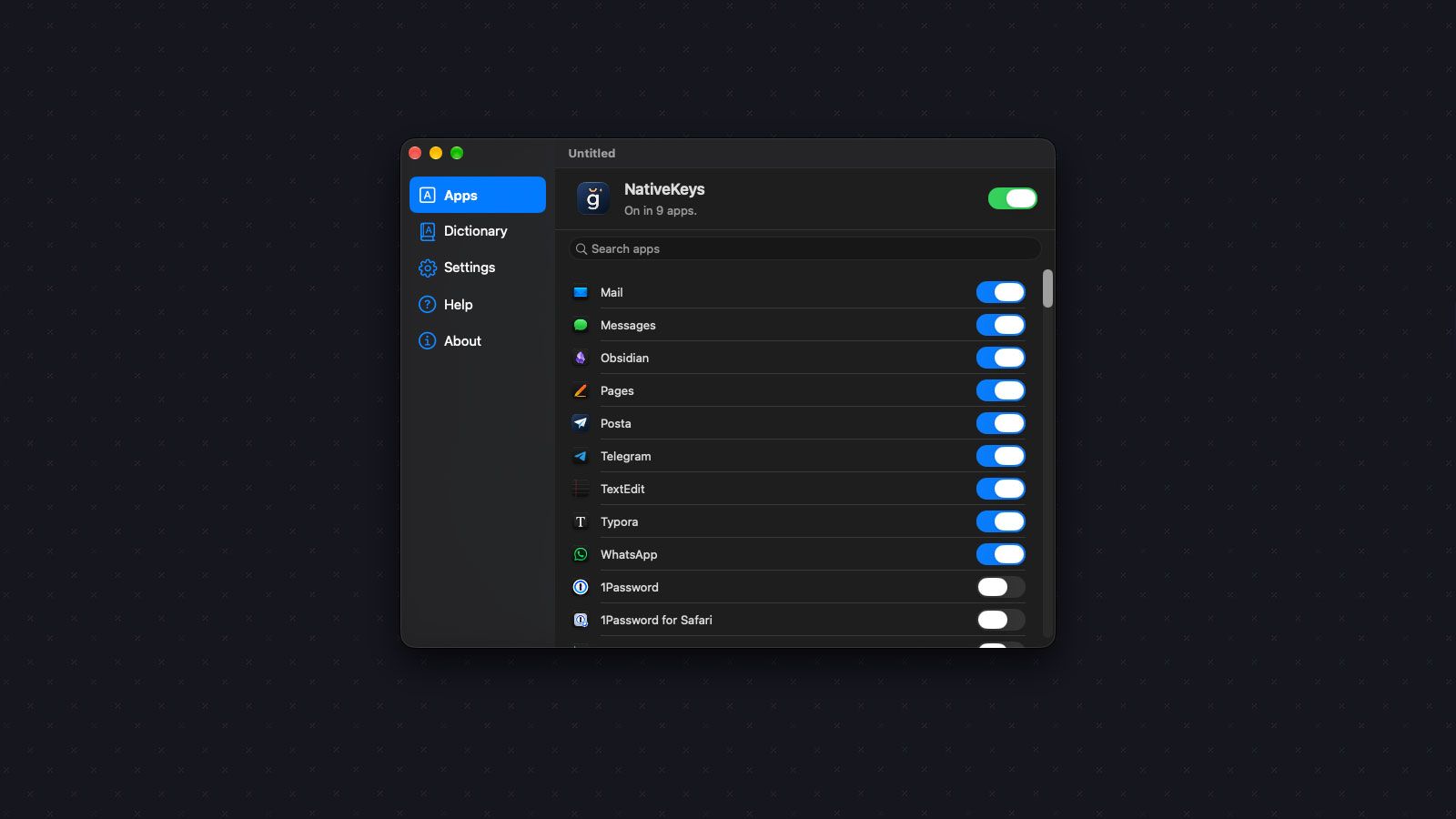
NativeKeys is a menu bar app that fixes this while I type: nasilsin omer
becomes nasılsın ömer the moment I press space. It only works in the apps I
enable, like WhatsApp, Mail and Messages, and leaves everything else alone.
I built it for myself, because I was tired of choosing between correct Turkish and typing at normal speed. If it is useful to you, use it, but there is no business behind it. It is another piece of homegrown software.
Standing on Deniz Yüret's Work
The hard part of this problem was solved almost twenty years ago. In 2006 Deniz
Yüret wrote turkish.el, a Turkish mode for Emacs that corrects words as you
hit space, inspired by Gökhan Tür's earlier deasciifier. NativeKeys'
correction engine is a Swift port of turkish.el, used under its MIT License (Copyright
(C) 2006, 2010 Deniz Yüret). The app shows the licence under About >
Acknowledgements.
The approach is lovely in its simplicity. Only a handful of ASCII letters are
ambiguous: c, g, i, o, s and u. For each one, turkish.el looks at
a window of up to ten characters on each side and checks it against a decision
list of context patterns. That list was learned from a large body of Turkish
news text. A match says "this letter should be Turkish", and the letter is
toggled. There is no dictionary and no language model, just about 13,500
patterns and a window of text.
Porting it meant two things:
- Extracting the table. A small script reads the pattern table out of
turkish.eland turns it into a data file that ships inside the engine. - Proving the port matches. The original is run in Emacs to produce reference output, and the Swift port is checked against it line by line. If the two ever disagree, a test fails.
I made one intentional change: letters that are already Turkish are kept. The
original can also turn them back into ASCII, which makes sense in an editor
buffer, but not when I occasionally type a real ş myself.
How It Works While You Type
The engine and the typing logic live in a Swift package library called
NativeCore, with a small SwiftUI and AppKit app on top. Keeping the engine
separate means it can be tested on its own, and there is a command line tool
for trying it out and measuring accuracy on any text: it strips correct Turkish
down to ASCII, corrects it again and reports how many words came back right.
In the app, a keyboard event tap watches key presses, and only when the front
app is one I enabled. When a word ends with space, Return or punctuation,
NativeKeys corrects that word, and only that word. The previously committed text
serves as left context, so the decision sees the same kind of window
turkish.el would see in Emacs.
If the word changed, NativeKeys deletes the part that differs and types the corrected letters, so only the changed letters are retyped. Then it lets the key you pressed through. To the app in front, it looks like fast typing.
The rules around that are where most of the real work went:
- Undo is one Backspace. The first Backspace right after a correction restores what I typed. After Return there is no undo, because the app may already have acted on it (WhatsApp has already sent the message).
- Tab never corrects, so shell completion sees exactly what I typed.
- Code-looking words are skipped. Anything with
/ \ - . = _ ~ $ @ :or a digit, and single letters, is never touched. - Launchers are left alone. Spotlight, Raycast and Alfred take the keyboard without becoming the front app. NativeKeys checks which process each key event is aimed at, so typing in a launcher over an enabled app stays untouched.
- Clicks reset the word. A mouse click can move the cursor, so the word buffer starts over instead of guessing.
Terminals are not supported. Some ignore the corrected text, and shells and full-screen programs treat Backspace as a command, which is not something you want an autocorrect to get creative with.
The Dictionary
A model trained on news text does not know how people chat. Forms like
napiyorsun (a casual squash of "what are you doing") are not in the patterns.
The Dictionary section covers that:
- Spellings: add a typed form and its correct spelling, for example
napiyorsuntonapıyorsun. It is applied in the same case you typed. - Ignored words: words NativeKeys should never correct.
- Recently undone: words you undid with Backspace show up here, so you can turn them into a spelling or an ignored word with one click.
You can also fill the Dictionary without opening it. Select a word in any app and press:
- Control+Option+Command+I to add it to the ignored words. If the app had already changed it, NativeKeys puts back what you typed.
- Control+Option+Command+D to open the Dictionary with the word filled in for a new spelling.
A third global shortcut, Control+Option+Command+G, switches NativeKeys on and off in every app. Settings can record different keys for all three. The app itself is in English and Turkish, following the macOS language.
Permissions and Privacy
NativeKeys needs two permissions, and Settings shows the status of both:
- Input Monitoring, to see what you type.
- Accessibility, to type the corrected word.
That is a lot of trust to ask of any app, so I kept the footprint small. NativeKeys keeps only the current word and the last 20 characters in memory. Nothing is stored, logged or sent anywhere. The only things saved are your settings: the on/off state, the enabled apps, your spellings and ignored words. NativeKeys has no network access for your typing. The only time it goes online is to check for its own updates.
Installing It
NativeKeys needs macOS 14 or later and runs on Apple silicon and Intel Macs. Install it with Homebrew:
brew install --cask tarikkavaz/tap/nativekeysOr download the ZIP from the Casks page.
It updates itself from the About page, or through Homebrew:
brew upgrade --cask nativekeysAfter the first launch, allow Input Monitoring and Accessibility, then switch on the apps you want corrected, either from the Apps section or with "Enabled in" from the menu while that app is in front.
Updating from Native
If you installed the app as Native, use Check for Updates in the app. It installs NativeKeys and keeps your Dictionary and settings.
If you installed it with Homebrew, switch the cask afterwards so Homebrew
tracks the new name. Uninstall the old cask without --zap, or Homebrew also
removes your Dictionary and settings:
brew trust tarikkavaz/tap
brew uninstall --cask native
brew install --cask tarikkavaz/tap/nativekeysWhy This One Matters to Me
I write Turkish every day, mostly in quick messages, and for years the choice was either proper characters or speed. NativeKeys removes the choice. I type the way my fingers already want to, and the text comes out the way it should look.
It also says something nice about software. A carefully built Emacs mode from 2006, with a permissive licence, became the core of a Mac app in 2026. Good work with an open licence keeps being useful long after it was written, and I am grateful to Deniz Yüret for sharing it.