Cue: A Spotify Connect Now-Playing Companion for the Mac
October 20, 2026
Most of the time my music does not play on my Mac. It plays on a speaker in the room, and I start it from my phone or from Spotify on the desktop. Spotify Connect makes that easy. Controlling it from the Mac I am actually working on is another story.
The media keys do nothing when the music is on a speaker. Changing the volume means finding the Spotify window, or picking up my phone. Seeing what is playing means switching apps. None of it is hard, but it happens many times a day, and each time it pulls me out of what I was doing.
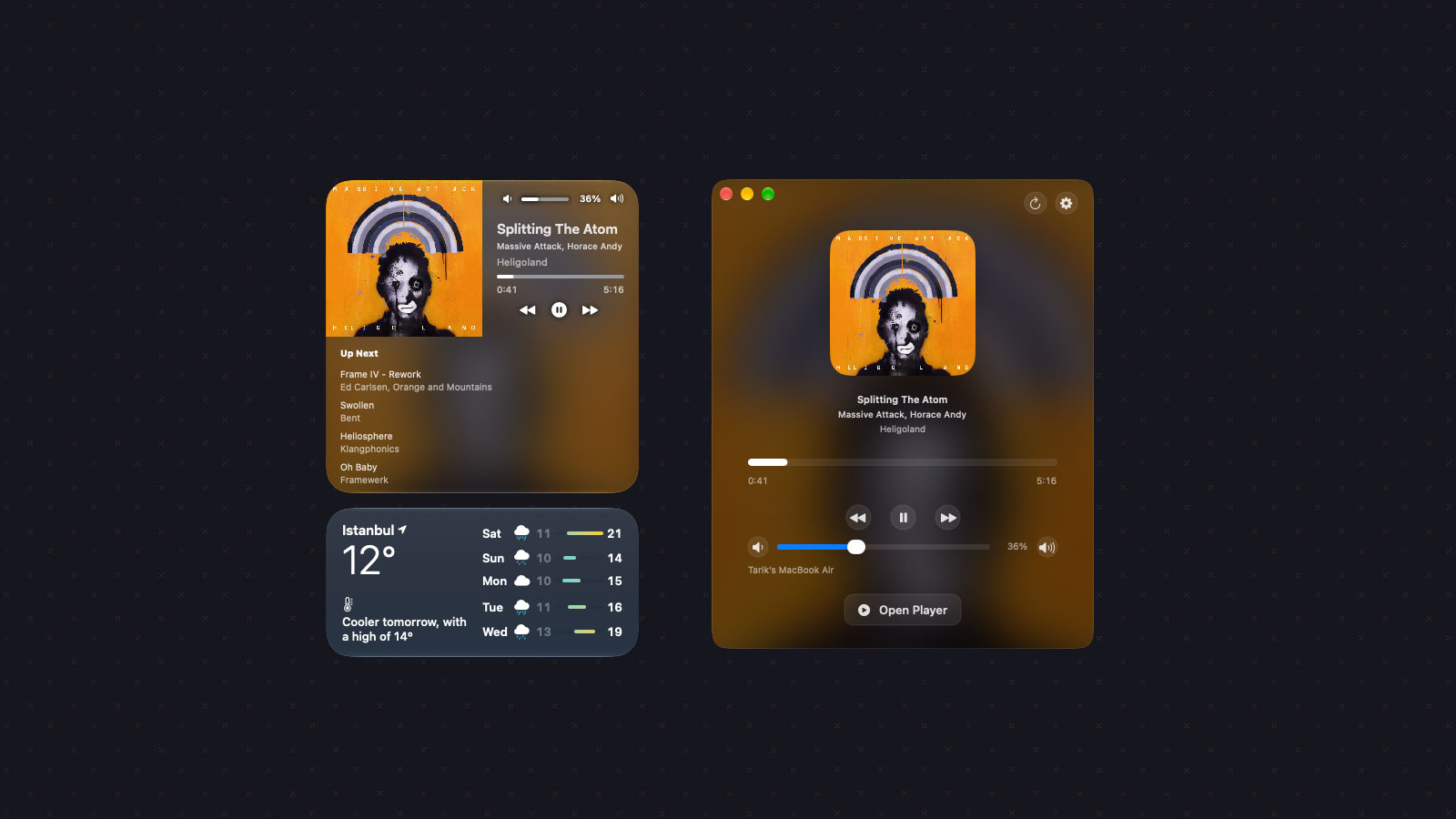
Cue is my answer to that: a native macOS now-playing companion for Spotify Connect. It shows what is playing in a small app window, in the menu bar and in desktop widgets, and it controls whichever Spotify Connect device is active, including remote ones.
I build apps like this for my own use first. Anyone is welcome to use them, and I am not trying to make money from them. I wrote more about why in the homegrown software post.
The problem with remote playback on a Mac
macOS has a good system for media: the media keys, the Now Playing control in Control Center, and widgets. But it only knows about audio that plays on the Mac. When Spotify plays on a speaker, a TV or another computer, the Mac has no idea, so none of those controls help.
The Spotify desktop app can control remote devices, but it is a full window. I did not want a second music app. I wanted the controls the Mac already has to work with the device that is playing.
What Cue does
Desktop widgets
Cue's widget comes in four sizes: small, medium, large and extra large. Each
shows the artwork, track and artist, with previous, play/pause and next
buttons, plus volume controls. The large and extra-large widgets add an Up Next list from your Spotify queue, or "Nothing queued" when it is empty.
There are two looks. Artwork First uses the album art as the background, and Neutral Dark keeps things calm when the artwork is loud. You can also choose what a click on the widget does: nothing, open Cue, or open Spotify.
When nothing is playing, the widget keeps showing the last track you played instead of going blank. That sounds small, but an empty widget on the desktop looked broken to me.
The menu bar
The menu bar icon opens a popover with the current track, playback controls and a native volume slider from 0 to 100. From there you can also refresh playback, open the player window, open Settings or quit.
In Settings you pick how Cue presents itself: Dock and menu bar, menu bar only, or Dock only. I run it from the menu bar only. Closing the last window does not quit the app, and there is an option to open Cue at login, so the widgets and the menu bar stay alive.
Media keys and Now Playing
This is the part I use most. Cue publishes the current Spotify Connect track to macOS Now Playing. The media keys, the Now Playing control in Control Center, and headphone controls then work with the remote device as if the music were playing on the Mac. Seeking and 15-second skips work too.
When the Spotify desktop app on the Mac is the active device, Spotify already publishes its own Now Playing session. In that case Cue steps aside, so you do not get two competing sessions.
Picking up where you left off
If no device is active and you press play, Cue does not just show an error. It looks at your available Spotify Connect devices and prefers the one you last used, then a computer, then anything else. If no device is available at all, it opens the Spotify desktop app, waits for it to appear and moves playback there.
How it works
Cue talks to the Spotify Web API. While music plays, it checks playback every two seconds, and every ten seconds when it is paused or idle. Each update is saved to a shared container that the widget reads, along with cached artwork, so the widget and the menu bar always show the same state.
Widgets on macOS are not live apps. They show snapshots and run short actions. So when you press a button on a widget, the command goes to the Cue app, which sends it to Spotify. Cue also keeps a heartbeat that tells the widget whether the app is running. If it is not, the widget asks you to open Cue instead of showing controls that would not respond.
Getting that part reliable took most of the work. The commit history is full of widget fixes: controls that stopped responding, a widget stuck in its "Open Cue" state while the app was running, and the last track disappearing when no device was active. Spotify Connect is also eventually consistent, especially for remote devices, so Cue has to allow for a short delay between sending a command and seeing the new state.
Privacy
Cue has no backend. It sends requests directly from your Mac to Spotify, stores your Spotify sign-in tokens in the macOS Keychain, and does not collect analytics. Playback data and artwork stay on your Mac. You can sign out in Settings at any time, or remove Cue's access from your Spotify account settings.
Cue is an independent project. It is not affiliated with or endorsed by Spotify.
Requirements
- macOS 14 Sonoma or later.
- A Spotify Premium account. Spotify only allows playback and volume control through its Web API for Premium accounts.
- At least one Spotify Connect device: a speaker, a TV, your phone, or Spotify on a computer.
Getting started
Install Cue with Homebrew:
brew install --cask tarikkavaz/tap/cueTo update later:
brew upgrade --cask cueThen:
- Open Cue from your Applications folder.
- Open Settings and select Connect Spotify.
- Sign in to Spotify and allow the playback permissions Cue asks for.
- Add the Cue widget to your desktop: right-click the desktop, choose Edit Widgets, and search for Cue.
Start something on any Spotify Connect device, and Cue shows it within a couple of seconds.
Small, on purpose
Cue does not try to be a Spotify client. There is no library, no search and no playlists. Spotify already does all of that well. Cue only covers the moments when I want to see what is playing, skip a track or turn it down without leaving what I am doing.
That narrow scope is why it was worth building. It fits how I listen to music at my desk, and if you listen the same way, it might fit you too.