
Building a Smart Project Initialization Function with Raycast Integration
November 2, 2025
Introduction
Starting a new development project typically involves repetitive setup tasks: creating folder structures, initializing Git repositories, setting up .gitignore files, creating cloud-backed documentation folders, and optionally setting up GitHub repositories. Wouldn't it be nice if you could automate all of this with a single command?
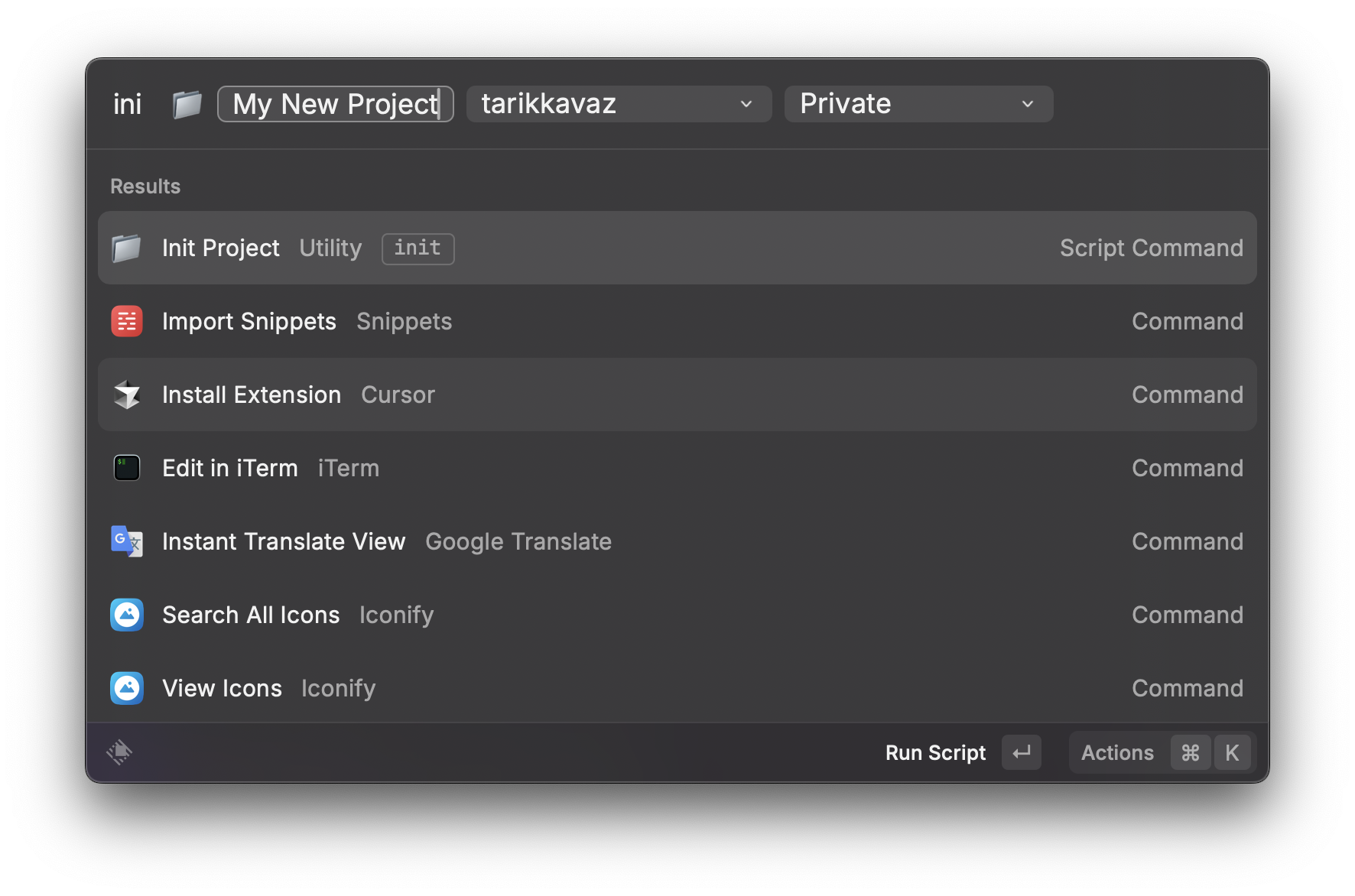
In this blog post, we'll explore a comprehensive shell function that does exactly that—and we'll make it even more powerful by integrating it with Raycast, allowing you to kickstart new projects directly from your launcher with pre-filled arguments.
The _tools Folder: Your Persistent Project Documentation Hub
One of the unique features of this setup is the cloud-backed _tools folder. This folder serves as a container for documents, notes, sources, and other resources that:
- Should not be in Git: These are local files specific to your workflow—research notes, design mockups, personal references, etc.
- Survive project deletion: When you delete a project from your local machine, your documents remain safe in the cloud
- Stay synchronized: Located in your cloud storage (iCloud, Dropbox, Google Drive, etc.), these files are automatically backed up and accessible across all your devices
- Remain accessible: A symlink in your project folder gives you instant access to these tools while keeping them out of version control
The typical workflow looks like this:
- Main project folder: Lives in
~/Projects/(or wherever you prefer) and contains your code, committed to Git - Cloud
_toolsfolder: Lives in~/Library/CloudStorage/iCloud Drive/Projects/_tools/(or your cloud storage of choice) - Symlink connection:
~/Projects/MyProject/_tools→~/Library/CloudStorage/iCloud Drive/Projects/_tools/MyProject/
This separation means you can safely delete old projects to free up disk space while preserving all your research, notes, and reference materials in the cloud. It's particularly useful for maintaining long-term knowledge bases and reference materials that span multiple projects.
What We're Building
Our initproject function will:
- Collect project information (name, GitHub organization, Git settings)
- Create folder structures (main project folder and cloud-backed
_toolsfolder) - Set up essential files (
.gitignore,README.md,To-Dos.md) - Initialize Git repositories (optional)
- Create GitHub repositories (optional, public or private)
- Open the project in your editor (Cursor)
The function works seamlessly in two modes:
- Terminal mode: Interactive prompts for all inputs
- Raycast mode: Pre-filled arguments from Raycast's UI
Prerequisites and Dependencies
Before we dive into the implementation, let's cover the dependencies and utilities this function relies on.
Color Functions
The function uses color aliases for better visual feedback. These are defined in a separate _colors.zsh file that gets sourced before the function. The color functions are simple ANSI escape code aliases:
# Text color aliases
alias red="print -n '\e[31m'"
alias green="print -n '\e[32m'"
alias yellow="print -n '\e[33m'"
alias reset="print -n '\e[0m'"Usage in the function:
green
echo "Created main folder: $main_folder"
resetThese color functions provide visual feedback:
- Green: Success messages and confirmations
- Yellow: Informational messages and prompts
- Red: Error messages and warnings
- Reset: Returns text color to default after use
If you don't have these color functions, you can either:
- Create a
_colors.zshfile with the aliases above - Replace color calls with direct ANSI codes:
echo -e "\e[32mSuccess\e[0m" - Remove color calls entirely (functionality remains the same)
Other Dependencies
- zsh: The function is written for zsh shell
- osascript: macOS built-in tool for AppleScript execution (used for folder pickers)
- fzf (optional): Fuzzy finder for better terminal UX (falls back to osascript if not available)
- git: Required for Git initialization
- gh CLI (optional): GitHub CLI for repository creation (falls back to API if not available)
- curl: Used for GitHub API fallback
- cursor: Editor command (change to
code,vim, or your preferred editor)
Function Loading
The function is loaded through a modular alias system. The main loader (_aliases.zsh) sources:
__setup.zsh- Loads color utilities and environment setup- Various alias modules
- Function modules, including
__functions_project.zsh
Note: Replace ~/your-shell-config/ in the code examples with your actual shell configuration path. Common locations include:
~/dotfiles/zsh/~/.config/zsh/~/shell-config/- Or any location where you store your shell configuration files
This ensures color functions are available before the initproject function runs.
Architecture Overview
The solution consists of two components:
- Core Function (
__functions_project.zsh): The main logic that handles project initialization - Raycast Script (
initproject.sh): A wrapper that accepts Raycast arguments and passes them to the function via environment variables
The function uses environment variables to detect when it's being called from Raycast, allowing it to skip interactive prompts while maintaining full backward compatibility with terminal usage.
Part 1: Environment Variable Detection Pattern
The key to dual-mode operation is checking for environment variables before showing interactive prompts. Here's the pattern we use throughout:
# Check if environment variable is set (from Raycast)
if [[ -n "$INITPROJECT_NAME" ]]; then
  project_name="$INITPROJECT_NAME"
# Check if running in interactive terminal
elif [[ -t 0 ]]; then
  # Interactive terminal - use read
  echo "Enter project name:"
  read -r project_name
else
  # Non-interactive - use osascript dialog
  project_name=$(osascript <<'EOF'
    tell application "System Events"
      display dialog "Enter project name:" default answer ""
      return text returned of result
    end tell
EOF
)
fiThis pattern ensures:
- Raycast mode: Uses the environment variable if set
- Terminal mode with TTY: Uses standard input prompts
- Non-interactive mode: Falls back to macOS dialogs
Part 2: Project Name Collection and Sanitization
The first step collects and validates the project name:
# Step 1: Get project name
if [[ -n "$INITPROJECT_NAME" ]]; then
  project_name="$INITPROJECT_NAME"
elif [[ -t 0 ]]; then
  echo "Enter project name:"
  read -r project_name
else
  # osascript dialog for non-interactive mode
fi

# Store original for display purposes (README, To-Dos)
local original_project_name="$project_name"

# Sanitize for filesystem (spaces → hyphens, remove special chars)
project_name=$(echo "$project_name" | sed 's/[^a-zA-Z0-9-]/-/g' | sed 's/--*/-/g' | sed 's/^-\|-$//g')Why sanitize? We preserve the original name for human-readable files (README, To-Dos) but sanitize it for folder names and repository names, which have stricter requirements.
Part 3: Folder Selection with macOS Integration
Instead of asking users to type paths, we use macOS's native folder picker:
# Step 2: Get main folder location
local main_location=$(osascript <<'EOF'
  try
    set theFolder to choose folder with prompt "Select the location for the main project folder:"
    POSIX path of theFolder
  on error
    return ""
  end try
EOF
)

main_location="${main_location%/}"  # Remove trailing slash
local main_folder="$main_location/$project_name"Benefits of using osascript:
- Visual folder selection is more intuitive than typing paths
- Prevents typos and invalid paths
- Works consistently across macOS
- No need to remember exact folder structures
Part 4: Smart Folder Existence Handling
Before creating folders, we check if they already exist and give users options:
# Step 3: Check if folder exists and handle it
if [[ -d "$main_folder" ]]; then
  echo "Folder already exists: $main_folder"
  local action

  # Use Raycast argument if available
  if [[ -n "$INITPROJECT_EXISTS" ]]; then
    action="$INITPROJECT_EXISTS"
  elif [[ -t 0 ]] && command -v fzf > /dev/null 2>&1; then
    # Use fzf for interactive selection in terminal
    action=$(echo -e "Use existing\nOverwrite\nCancel" | fzf --height 10% --reverse)
  else
    # Use osascript dialog
    action=$(osascript <<EOF
      tell application "System Events"
        set theChoice to choose from list {"Use existing", "Overwrite", "Cancel"}
        return item 1 of theChoice
      end tell
EOF
)
  fi

  if [[ "$action" == "Overwrite" ]]; then
    rm -rf "$main_folder"
  elif [[ "$action" == "Cancel" ]]; then
    return 1
  fi
fiProgressive enhancement: We try fzf first (if available), then fall back to osascript dialogs. Raycast mode bypasses this entirely by using the pre-selected option.
Part 5: Essential File Generation
We create three essential files for every project:
5.1 Comprehensive .gitignore
cat > "$main_folder/.gitignore" <<'GITIGNORE_EOF'
# Dependencies
node_modules/

# Build output (Vite)
dist/
out/
build/

# Environment files
.env
.env.*
!.env.example

# IDEs and editors
.cursor/
.vscode/
.idea/

# OS noise
.DS_Store
._*

# Local scratch / docs
_tools
.notes
GITIGNORE_EOF5.2 README.md with Project Name
echo "# $original_project_name" > "$main_folder/README.md"5.3 To-Dos.md in Cloud Tools Folder
cat > "$cloud_tools_folder/To-Dos.md" <<TODOS_EOF
# $original_project_name
## To-Dos

- [x] Initial project folder setup, GitHub repository creation, and .gitignore configuration
TODOS_EOFNotice we use $original_project_name to preserve spaces and original formatting for display purposes.
Part 6: Cloud-Backed Tools Folder with Symlink
A unique feature of this setup is creating a cloud-synced _tools folder that's accessible from the project. This addresses a common problem: where to store project documentation, research notes, and reference materials that shouldn't be in Git.
# Step 5: Get cloud destination location
local cloud_location=$(osascript <<'EOF'
  try
    set theFolder to choose folder with prompt "Select the cloud destination location:"
    POSIX path of theFolder
  on error
    return ""
  end try
EOF
)

local cloud_folder="$cloud_location/$project_name"
local cloud_tools_folder="$cloud_folder/_tools"

# Create cloud folder structure
mkdir -p "$cloud_tools_folder"

# Create symlink from main project to cloud tools
local symlink_target="$main_folder/_tools"
ln -sF "$cloud_tools_folder" "$symlink_target"Why this pattern?
-
Separation of concerns: Code lives in your project folder (Git-managed), while documentation and tools live in the cloud (not in Git)
-
Persistent storage: When you delete a project to free up space, your research notes, design mockups, and reference materials remain safe in the cloud
-
Cross-device access: Access your project documentation from any device where your cloud storage is synced
-
Automatic backup: Your cloud provider handles backups and versioning
-
Version control hygiene: The
_toolsfolder is explicitly ignored in.gitignore, keeping your repository clean
Example folder structure:
Main Project Location:
~/Projects/
  └── my-awesome-app/
      ├── .git/
      ├── .gitignore
      ├── README.md
      └── _tools -> ~/Library/CloudStorage/iCloud Drive/Projects/_tools/my-awesome-app/

Cloud Storage Location:
~/Library/CloudStorage/iCloud Drive/Projects/_tools/
  └── my-awesome-app/
      ├── To-Dos.md
      ├── research.md
      ├── design-notes.md
└── references/The symlink (ln -sF) creates a bidirectional connection: you can access cloud files from your project folder, and if you open the cloud folder, you'll see the same files. The -F flag forces creation, overwriting any existing symlink if needed.
Part 7: GitHub Organization Selection
The function supports multiple GitHub organizations and allows custom entries:
# Step 7: Organization/Username selection
local orgs=("yourusername" "yourorg")
local orgs_with_custom=("${orgs[@]}" "Custom")

# Check for Raycast argument
if [[ -n "$INITPROJECT_ORG" ]]; then
  org_option="$INITPROJECT_ORG"
elif [[ -t 0 ]] && command -v fzf > /dev/null 2>&1; then
  # Use fzf for selection
  local fzf_input=$(printf '%s\n' "${orgs_with_custom[@]}")
  org_option=$(echo "$fzf_input" | fzf --height 10% --reverse)
else
  # Build AppleScript list dynamically
  local osascript_list="{"
  for org in "${orgs_with_custom[@]}"; do
    osascript_list+="\"$org\", "
  done
  osascript_list="${osascript_list%, }}"
  osascript_list+="}"

  org_option=$(osascript <<EOF
    tell application "System Events"
      set theChoice to choose from list $osascript_list
      return item 1 of theChoice
    end tell
EOF
)
fi

# Handle custom organization
if [[ "$org_option" == "Custom" ]]; then
  github_owner=$(osascript <<'EOF'
    tell application "System Events"
      display dialog "Enter organization/username:" default answer ""
      return text returned of result
    end tell
EOF
)
else
  github_owner="$org_option"
fiKey insight: We dynamically build the AppleScript list from the array, making it easy to add or remove organizations.
Part 8: Git Initialization and GitHub Repository Creation
The function can optionally initialize Git and create GitHub repositories:
# Step 8: Git initialization menu
if [[ -n "$INITPROJECT_GIT" ]]; then
  git_option="$INITPROJECT_GIT"
# ... interactive selection ...

if [[ "$git_option" != "No" ]]; then
  local is_private="false"
  if [[ "$git_option" == "Private" ]]; then
    is_private="true"
  fi

  # Initialize git
  cd "$main_folder"
  git init
  git add .gitignore README.md
git commit -m "Initial commit"8.1 GitHub Repository Creation with Dual Methods
We try the GitHub CLI first (cleaner, better auth), then fall back to the API:
# Try gh CLI first
if command -v gh > /dev/null 2>&1; then
  if [[ "$is_private" == "true" ]]; then
    if [[ "$is_org" == "true" ]]; then
      gh repo create "$github_owner/$project_name" --private --source=. --remote=origin --push
    else
      gh repo create "$project_name" --private --source=. --remote=origin --push
    fi
  else
    # Public repo creation...
  fi
fi

# Fallback to API if gh CLI failed
if [[ "$repo_created" == "false" ]]; then
  local api_url
  if [[ "$is_org" == "true" ]]; then
    api_url="https://api.github.com/orgs/$github_owner/repos"
  else
    api_url="https://api.github.com/user/repos"
  fi

  local api_response=$(curl -s -w "\n%{http_code}" -u "$GITHUB_USERNAME:$GITHUB_TOKEN" \
    "$api_url" \
    -d "{\"name\":\"$project_name\", \"private\": $is_private}")

  local http_code=$(echo "$api_response" | tail -n1)
  if [[ "$http_code" == "201" ]]; then
    git remote add origin "https://github.com/$github_owner/$project_name.git"
    git push -u origin main
  fi
fiWhy both methods? GitHub CLI provides a better developer experience with OAuth authentication, but the API fallback ensures the function works even without gh installed.
Part 9: Raycast Integration
The Raycast script is elegantly simple—it just maps arguments to environment variables:
#!/bin/zsh

# Raycast argument definitions
# @raycast.argument1 { "type": "text", "placeholder": "Project Name", "optional": false }
# @raycast.argument2 { "type": "dropdown", "placeholder": "GitHub Organization", "data": [...] }
# @raycast.argument3 { "type": "dropdown", "placeholder": "Git Initialization", "data": [...] }
# @raycast.argument4 { "type": "dropdown", "placeholder": "If Folder Exists", "data": [...] }

# Export arguments as environment variables
export INITPROJECT_NAME="$1"
export INITPROJECT_ORG="$2"
export INITPROJECT_GIT="$3"
export INITPROJECT_EXISTS="$4"

# Source the function
# Replace ~/your-shell-config/ with your actual shell configuration path
source ~/your-shell-config/_aliases.zsh 2>/dev/null || true

# Run the function
initproject

# Clean up environment variables
unset INITPROJECT_NAME INITPROJECT_ORG INITPROJECT_GIT INITPROJECT_EXISTSKey points:
- Raycast provides arguments as
$1,$2, etc. - We export them with a unique prefix (
INITPROJECT_*) to avoid conflicts - The function detects these and skips corresponding prompts
- We clean up after execution to avoid polluting the environment
Part 10: Color Output and Error Handling
Throughout the function, we use color functions for better UX:
green
echo "Created main folder: $main_folder"
reset

yellow
echo "Select the MAIN folder location in Finder..."
reset

red
echo "Project name cannot be empty."
resetError handling pattern:
[[ -z "$project_name" ]] && { red; echo "Project name cannot be empty."; reset; return 1; }

mkdir -p "$main_folder" || { red; echo "Failed to create main folder."; reset; return 1; }We check for errors at each critical step and provide clear, colored feedback.
Part 11: Opening the Project
Finally, we open the project in Cursor (or your preferred editor):
if command -v cursor > /dev/null 2>&1; then
  cd "$main_folder" && cursor .
else
  echo "Cursor command not found. Please open manually: $main_folder"
fiComplete Code
Core Function (__functions_project.zsh)
# ---------------------------------------------------------------------------
# FUNCTIONS - Project Utilities

### Initialize a new project with folder structure, .gitignore, symlinked _tools, and optional GitHub repo
### Sample: initproject
initproject() {
  local GITHUB_USERNAME="yourusername"
  local GITHUB_TOKEN="your_github_token_here"

  # Step 1: Get project name
  # Check if environment variable is set (from Raycast)
  if [[ -n "$INITPROJECT_NAME" ]]; then
    project_name="$INITPROJECT_NAME"
  # Check if running in non-interactive environment (e.g., Raycast)
  elif [[ -t 0 ]]; then
    # Interactive terminal - use read
    echo
    yellow
    echo "Enter project name:"
    reset
    read -r project_name
  else
    # Non-interactive (Raycast) - use osascript dialog
    project_name=$(osascript <<'EOF'
      tell application "System Events"
        display dialog "Enter project name:" default answer "" with title "Init Project"
        set theAnswer to text returned of result
        return theAnswer
      end tell
EOF
)
  fi
  [[ -z "$project_name" ]] && { red; echo "Project name cannot be empty."; reset; return 1; }

  # Store original project name for README.md
  local original_project_name="$project_name"

  # Sanitize project name (preserve case, replace spaces/special chars with hyphens)
  project_name=$(echo "$project_name" | sed 's/[^a-zA-Z0-9-]/-/g' | sed 's/--*/-/g' | sed 's/^-\|-$//g')
  [[ -z "$project_name" ]] && { red; echo "Invalid project name after sanitization."; reset; return 1; }

  green
  echo "Using project name: $project_name"
  reset

  # Step 2: Get main folder location
  echo
  yellow
  echo "Select the MAIN folder location in Finder..."
  reset
  local main_location=$(osascript <<'EOF'
    try
      set theFolder to choose folder with prompt "Select the location for the main project folder:"
      POSIX path of theFolder
    on error
      return ""
    end try
EOF
)
  [[ -z "$main_location" ]] && { red; echo "Cancelled."; reset; return 1; }
  main_location="${main_location%/}"

  local main_folder="$main_location/$project_name"

  # Step 3: Check if folder exists and handle it
  if [[ -d "$main_folder" ]]; then
    echo
    yellow
    echo "Folder already exists: $main_folder"
    reset
    echo "What would you like to do?"
    local action

    # Check if environment variable is set (from Raycast)
    if [[ -n "$INITPROJECT_EXISTS" ]]; then
      action="$INITPROJECT_EXISTS"
    elif [[ -t 0 ]] && command -v fzf > /dev/null 2>&1; then
      # Interactive terminal with fzf - use fzf
      action=$(echo -e "Use existing\nOverwrite\nCancel" | fzf --height 10% --reverse)
    else
      # Non-interactive (Raycast) or fzf not available - use osascript dialog
      action=$(osascript <<EOF
        tell application "System Events"
          set theChoice to choose from list {"Use existing", "Overwrite", "Cancel"} with prompt "Folder already exists: $main_folder" default items {"Use existing"} with title "Init Project"
          if theChoice is false then
            return ""
          else
            return item 1 of theChoice
          end if
        end tell
EOF
)
    fi
    [[ -z "$action" ]] && { red; echo "Cancelled."; reset; return 1; }

    if [[ "$action" == "Cancel" ]]; then
      red
      echo "Cancelled."
      reset
      return 1
    elif [[ "$action" == "Overwrite" ]]; then
      red
      echo "Removing existing folder..."
      reset
      rm -rf "$main_folder" || { red; echo "Failed to remove existing folder."; reset; return 1; }
    fi
  fi

  # Create main folder if it doesn't exist
  if [[ ! -d "$main_folder" ]]; then
    mkdir -p "$main_folder" || { red; echo "Failed to create main folder."; reset; return 1; }
    green
    echo "Created main folder: $main_folder"
    reset
  else
    green
    echo "Using existing folder: $main_folder"
    reset
  fi

  # Step 4: Create .gitignore
  cat > "$main_folder/.gitignore" <<'GITIGNORE_EOF'
# Dependencies
node_modules/

# Build output (Vite)
dist/
out/
build/

# Vite caches
.vite/

# Environment files
.env
.env.*
!.env.example
!.env.sample

# Logs
*.log
npm-debug.log*
yarn-debug.log*
yarn-error.log*
pnpm-debug.log*
lerna-debug.log*

# IDEs and editors
.cursor/
.vscode/
.idea/
*.iml
*.sublime-project
*.sublime-workspace
*.code-workspace

# OS noise
.DS_Store
.AppleDouble
.LSOverride
._*
Thumbs.db
Desktop.ini
*~

# Local scratch / docs you do not want in repo
_tools
.notes

# Misc
nul
GITIGNORE_EOF

  green
  echo "Created .gitignore"
  reset

  # Create README.md with original project name
  echo "# $original_project_name" > "$main_folder/README.md"
  green
  echo "Created README.md"
  reset

  # Step 5: Get cloud destination location
  echo
  yellow
  echo "Select the CLOUD destination location in Finder..."
  reset
  local cloud_location=$(osascript <<'EOF'
    try
      set theFolder to choose folder with prompt "Select the cloud destination location:"
      POSIX path of theFolder
    on error
      return ""
    end try
EOF
)
  [[ -z "$cloud_location" ]] && { red; echo "Cancelled."; reset; return 1; }
  cloud_location="${cloud_location%/}"

  local cloud_folder="$cloud_location/$project_name"
  local cloud_tools_folder="$cloud_folder/_tools"

  # Create cloud folder structure
  mkdir -p "$cloud_tools_folder" || { red; echo "Failed to create cloud folder structure."; reset; return 1; }
  green
  echo "Created cloud folder: $cloud_folder"
  echo "Created _tools folder: $cloud_tools_folder"
  reset

  # Create To-Dos.md in cloud _tools folder
  cat > "$cloud_tools_folder/To-Dos.md" <<TODOS_EOF
# $original_project_name
## To-Dos

- [x] Initial project folder setup, GitHub repository creation, and .gitignore configuration
TODOS_EOF

  green
  echo "Created To-Dos.md in _tools folder"
  reset

  # Step 6: Create symlink
  local symlink_target="$main_folder/_tools"
  ln -sF "$cloud_tools_folder" "$symlink_target" || { red; echo "Failed to create symlink."; reset; return 1; }
  green
  echo "Created symlink: $symlink_target → $cloud_tools_folder"
  reset

  # Step 7: Organization/Username selection
  # EDIT HERE: Add or remove organizations from this array
  local orgs=("yourusername" "yourorg")
  local orgs_with_custom=("${orgs[@]}" "Custom")

  echo
  yellow
  echo "Select GitHub organization/username:"
  reset
  local github_owner
  local org_option

  # Check if environment variable is set (from Raycast)
  if [[ -n "$INITPROJECT_ORG" ]]; then
    org_option="$INITPROJECT_ORG"
  elif [[ -t 0 ]] && command -v fzf > /dev/null 2>&1; then
    # Interactive terminal with fzf - use fzf
    # Convert array to newline-separated string for fzf
    local fzf_input=$(printf '%s\n' "${orgs_with_custom[@]}")
    org_option=$(echo "$fzf_input" | fzf --height 10% --reverse)
  else
    # Non-interactive (Raycast) or fzf not available - use osascript dialog
    # Convert array to AppleScript list format
    local osascript_list="{"
    for org in "${orgs_with_custom[@]}"; do
      osascript_list+="\"$org\", "
    done
    osascript_list="${osascript_list%, }}"  # Remove trailing comma and space
    osascript_list+="}"

    org_option=$(osascript <<EOF
      tell application "System Events"
        set theChoice to choose from list $osascript_list with prompt "Select GitHub organization/username:" default items {"yourusername"} with title "Init Project"
        if theChoice is false then
          return ""
        else
          return item 1 of theChoice
        end if
      end tell
EOF
)
  fi
  [[ -z "$org_option" ]] && { red; echo "Cancelled."; reset; return 1; }

  if [[ "$org_option" == "Custom" ]]; then
    # Get custom organization/username
    github_owner=$(osascript <<'EOF'
      tell application "System Events"
        display dialog "Enter organization/username:" default answer "" with title "Init Project"
        set theAnswer to text returned of result
        return theAnswer
      end tell
EOF
)
    [[ -z "$github_owner" ]] && { red; echo "Organization/username cannot be empty."; reset; return 1; }
  else
    github_owner="$org_option"
  fi

  green
  echo "Using GitHub owner: $github_owner"
  reset

  # Step 8: Git initialization menu
  echo
  yellow
  echo "Initialize Git repository?"
  reset
  local git_option

  # Check if environment variable is set (from Raycast)
  if [[ -n "$INITPROJECT_GIT" ]]; then
    git_option="$INITPROJECT_GIT"
  elif [[ -t 0 ]] && command -v fzf > /dev/null 2>&1; then
    # Interactive terminal with fzf - use fzf
    git_option=$(echo -e "No\nPublic\nPrivate" | fzf --height 10% --reverse)
  else
    # Non-interactive (Raycast) or fzf not available - use osascript dialog
    git_option=$(osascript <<'EOF'
      tell application "System Events"
        set theChoice to choose from list {"No", "Public", "Private"} with prompt "Initialize Git repository?" default items {"No"} with title "Init Project"
        if theChoice is false then
          return ""
        else
          return item 1 of theChoice
        end if
      end tell
EOF
)
  fi
  [[ -z "$git_option" ]] && { red; echo "Cancelled."; reset; return 1; }

  if [[ "$git_option" != "No" ]]; then
    local is_private="false"
    if [[ "$git_option" == "Private" ]]; then
      is_private="true"
    fi

    # Initialize git
    cd "$main_folder" || { red; echo "Failed to change to main folder."; reset; return 1; }
    git init || { red; echo "Failed to initialize git repository."; reset; return 1; }
    git add .gitignore README.md || { red; echo "Failed to add files to git."; reset; return 1; }
    git commit -m "Initial commit" || { red; echo "Failed to create initial commit."; reset; return 1; }

    green
    echo "Initialized git repository"
    reset

    # Step 9: Create GitHub repository
    local repo_created=false

    # Determine if it's an organization or username
    local is_org=false
    if [[ "$github_owner" != "yourusername" ]]; then
      is_org=true
    fi

    # Try gh CLI first
    if command -v gh > /dev/null 2>&1; then
      yellow
      echo "Creating GitHub repository using gh CLI..."
      reset
      if [[ "$is_private" == "true" ]]; then
        if [[ "$is_org" == "true" ]]; then
          if gh repo create "$github_owner/$project_name" --private --source=. --remote=origin --push 2>/dev/null; then
            repo_created=true
            green
            echo "Created private GitHub repository: https://github.com/$github_owner/$project_name"
            reset
          fi
        else
          if gh repo create "$project_name" --private --source=. --remote=origin --push 2>/dev/null; then
            repo_created=true
            green
            echo "Created private GitHub repository: https://github.com/$github_owner/$project_name"
            reset
          fi
        fi
      else
        if [[ "$is_org" == "true" ]]; then
          if gh repo create "$github_owner/$project_name" --public --source=. --remote=origin --push 2>/dev/null; then
            repo_created=true
            green
            echo "Created public GitHub repository: https://github.com/$github_owner/$project_name"
            reset
          fi
        else
          if gh repo create "$project_name" --public --source=. --remote=origin --push 2>/dev/null; then
            repo_created=true
            green
            echo "Created public GitHub repository: https://github.com/$github_owner/$project_name"
            reset
          fi
        fi
      fi
    fi

    # Fallback to API if gh CLI failed or not available
    if [[ "$repo_created" == "false" ]]; then
      yellow
      echo "Creating GitHub repository using API..."
      reset
      local api_url
      if [[ "$is_org" == "true" ]]; then
        # Use organization endpoint
        api_url="https://api.github.com/orgs/$github_owner/repos"
      else
        # Use user endpoint
        api_url="https://api.github.com/user/repos"
      fi

      local api_response=$(curl -s -w "\n%{http_code}" -u "$GITHUB_USERNAME:$GITHUB_TOKEN" \
        "$api_url" \
        -d "{\"name\":\"$project_name\", \"private\": $is_private}")

      local http_code=$(echo "$api_response" | tail -n1)
      if [[ "$http_code" == "201" ]]; then
        git remote add origin "https://github.com/$github_owner/$project_name.git" 2>/dev/null
        git push -u origin master 2>/dev/null || git push -u origin main 2>/dev/null
        repo_created=true
        green
        echo "Created GitHub repository: https://github.com/$github_owner/$project_name"
        reset
      else
        red
        echo "Failed to create GitHub repository. HTTP code: $http_code"
        reset
        # Continue anyway - repo might already exist or there was a network issue
      fi
    fi
  fi

  # Step 9: Open Cursor
  echo
  yellow
  echo "Opening Cursor..."
  reset
  if command -v cursor > /dev/null 2>&1; then
    cd "$main_folder" && cursor . || { red; echo "Failed to open Cursor."; reset; return 1; }
    green
    echo "Opened Cursor in: $main_folder"
    reset
  else
    red
    echo "Cursor command not found. Please open manually: $main_folder"
    reset
  fi

  echo
  green
  echo "Project initialization complete!"
  reset
  echo "Main folder: $main_folder"
  echo "Cloud folder: $cloud_folder"
  if [[ "$git_option" != "No" ]]; then
    echo "GitHub repo: https://github.com/$github_owner/$project_name"
  fi
}Raycast Script (initproject.sh)
#!/bin/zsh

# Required parameters:
# @raycast.schemaVersion 1
# @raycast.title Init Project
# @raycast.mode fullOutput
# @raycast.argument1 { "type": "text", "placeholder": "Project Name", "optional": false }
# @raycast.argument2 { "type": "dropdown", "placeholder": "GitHub Organization", "data": [{"title": "yourusername", "value": "yourusername"}, {"title": "yourorg", "value": "yourorg"}, {"title": "Custom", "value": "Custom"}], "optional": false }
# @raycast.argument3 { "type": "dropdown", "placeholder": "Git Initialization", "data": [{"title": "No", "value": "No"}, {"title": "Public", "value": "Public"}, {"title": "Private", "value": "Private"}], "optional": false }
# @raycast.argument4 { "type": "dropdown", "placeholder": "If Folder Exists", "data": [{"title": "Use existing", "value": "Use existing"}, {"title": "Overwrite", "value": "Overwrite"}], "optional": false }

# Optional parameters:
# @raycast.icon 📁
# @raycast.packageName Utility

# Documentation:
# @raycast.description Initialize a new project with folder structure, .gitignore, symlinked _tools, and optional GitHub repo
# @raycast.author yourusername
# @raycast.authorURL https://raycast.com/yourusername

# Export Raycast arguments as environment variables
export INITPROJECT_NAME="$1"
export INITPROJECT_ORG="$2"
export INITPROJECT_GIT="$3"
export INITPROJECT_EXISTS="$4"

# Source aliases to get the initproject function
# Replace ~/your-shell-config/ with your actual shell configuration path
# Suppress errors from virtualenvwrapper and other non-critical sources
source ~/your-shell-config/_aliases.zsh 2>/dev/null || true

# Run initproject
initproject

# Clean up environment variables
unset INITPROJECT_NAME INITPROJECT_ORG INITPROJECT_GIT INITPROJECT_EXISTSConclusion
This project initialization function demonstrates several powerful shell scripting techniques:
- Dual-mode operation via environment variable detection
- Progressive enhancement (fzf → osascript → fallback)
- macOS integration with AppleScript for native UI elements
- Error handling with clear, colored feedback
- Cloud-backed project tools via symlinks
- Flexible GitHub integration supporting both CLI and API methods
- Raycast integration for quick project creation from your launcher
The function is fully backward compatible—it works exactly as before when called from the terminal, while also supporting Raycast's argument-based workflow. This pattern of environment variable detection can be applied to any interactive script to add Raycast (or other launcher) support without breaking existing functionality.
Customization Tips
- Add more organizations: Edit the
orgsarray in Step 7 - Change default editor: Modify the
cursorcommand in Step 9 - Customize .gitignore: Edit the heredoc in Step 4
- Add more To-Dos: Modify the
To-Dos.mdtemplate - Change color functions: These are likely defined in your shell config (
yellow,green,red,reset)
Happy coding!